Recipe - Kentaa / iRaiser integration
Kentaa / iRaiser is a digital fundraising platform for teams and individuals. This guide shows how to replicate Team, Actor and Donation records on Salesforce using Flow External Services. Teams will be created using a platform event triggered flow. The flow runs when the webhook receives "Team Created" events for any team member.
| Contents |
|---|
| Salesforce Platform Event Setup Flow A - Receive the webhook Flow B - Process the events Testing the integration |
These concepts are used in the scenario:
- External Services - retrieves the full detail of each Kentaa object payload via an HTTP callout.
- Platform Events - when Kentaa events are received in parallel, the PE processes them in sequence.
- De-duplication - any duplicate record creation events are filtered out using bulk logic.
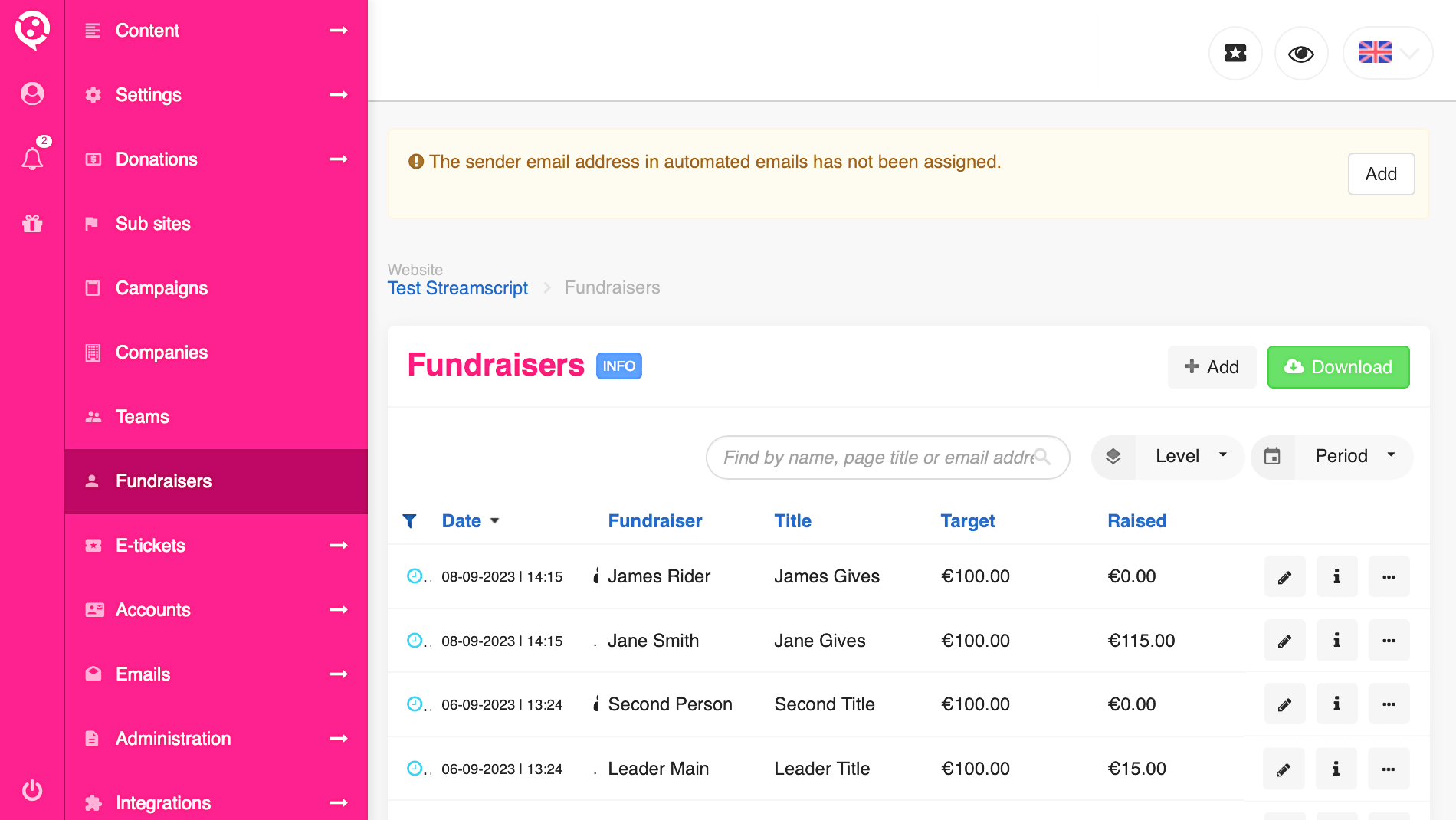
Salesforce Platform Event Setup
Kentaa provisions each user a custom environment with sample fundraising data configured. They provide an API key to support callbacks. For this demo, choose the following configuration: Site > Team Fund Raiser
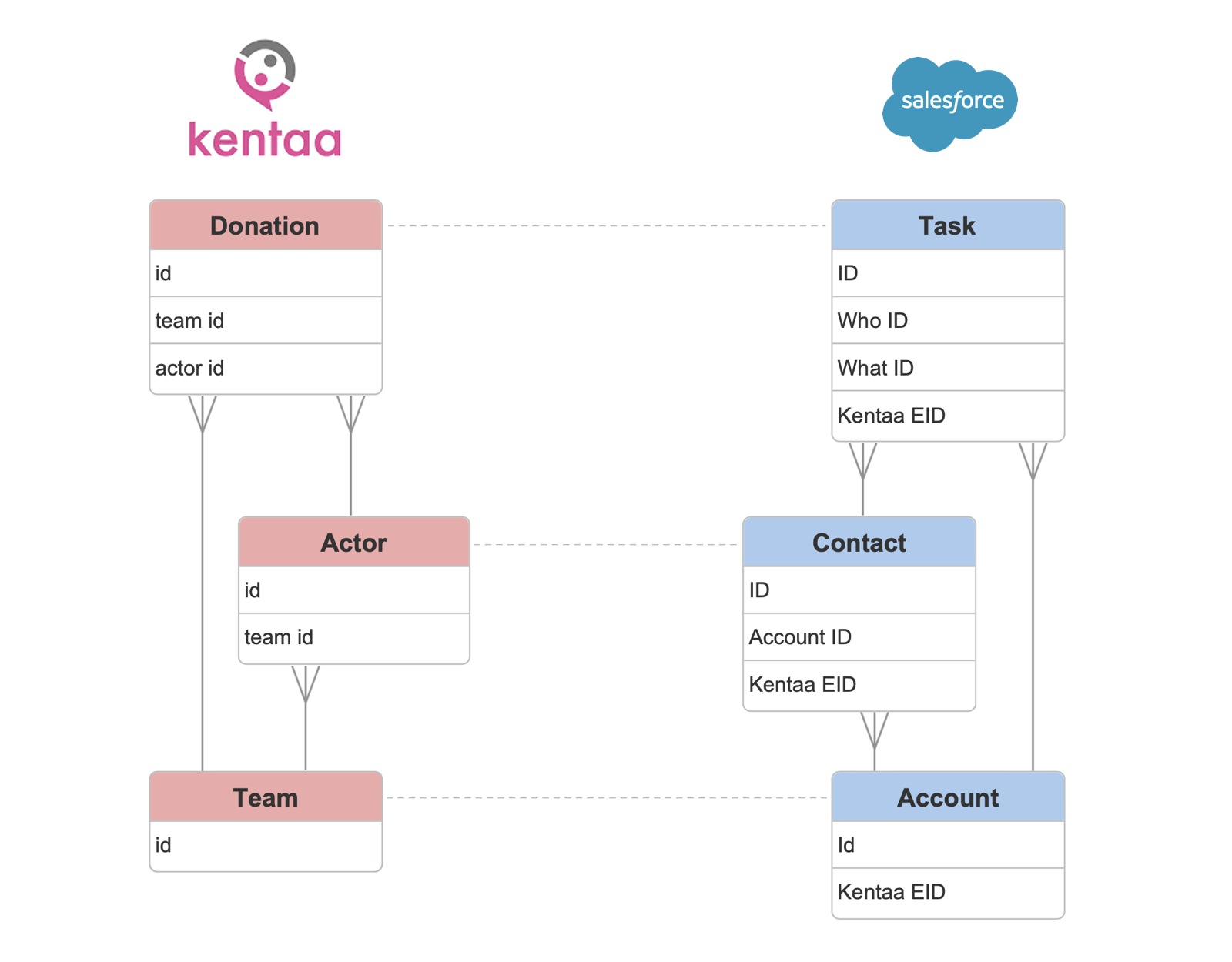
Kentaa Donations
We link each Donation to a Salesforce Task.
Kentaa Actors
Each fundraising Actor will be represented as a Salesforce Contact. The tasks are related by the Who ID.
Kentaa Teams
Several actors form a Team which is represented as a Salesforce Account. The tasks are related by the What ID.
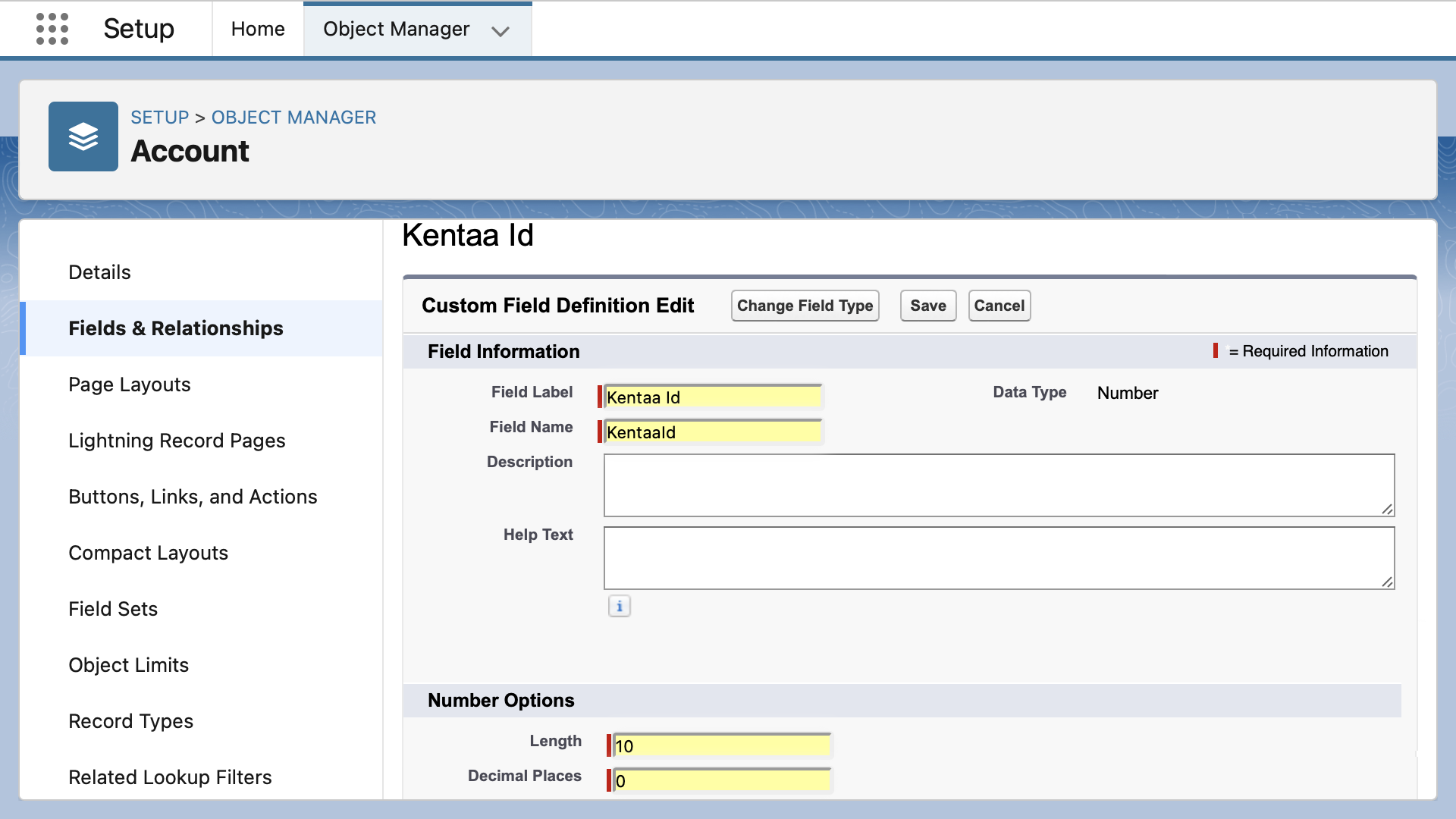
Salesforce External IDs
Create the necessary Salesforce fields to implement the model.
Account object - add an External ID representing the Kentaa Team.
- Type: Number
- Name: Kentaa_EID
- Length: 10
- Decimal Places: 0
Contact object - add an External ID representing the Kentaa Actor.
- Type: Number
- Name: Kentaa_EID
- Length: 10
- Decimal Places: 0
Task object - add an External ID representing the Kentaa Donation.
- Type: Number
- Name: Kentaa_EID
- Length: 10
- Decimal Places: 0
Kentaa Team Creation
Simultaneous team events - for every team member - are sent to Salesforce when the Save button is clicked on the Kentaa platform. This causes a race condition where multiple webhooks are triggered at the same time, all assuming the absence of the team or account record.
To ensure the safe creation of records, we use a Platform Event to convert the parallel stream of Kentaa's events into one collection that is processed sequentially in a later context. Then we use a flow to handle each Kentaa notification from the event queue and process them serially.
// Kentaa Event Message Structure
{
    "object_type": "action",
    "object_id": 42,
    "event_type": "counters.update",
    "application": "Kentaa",
    "site_id": 12
}
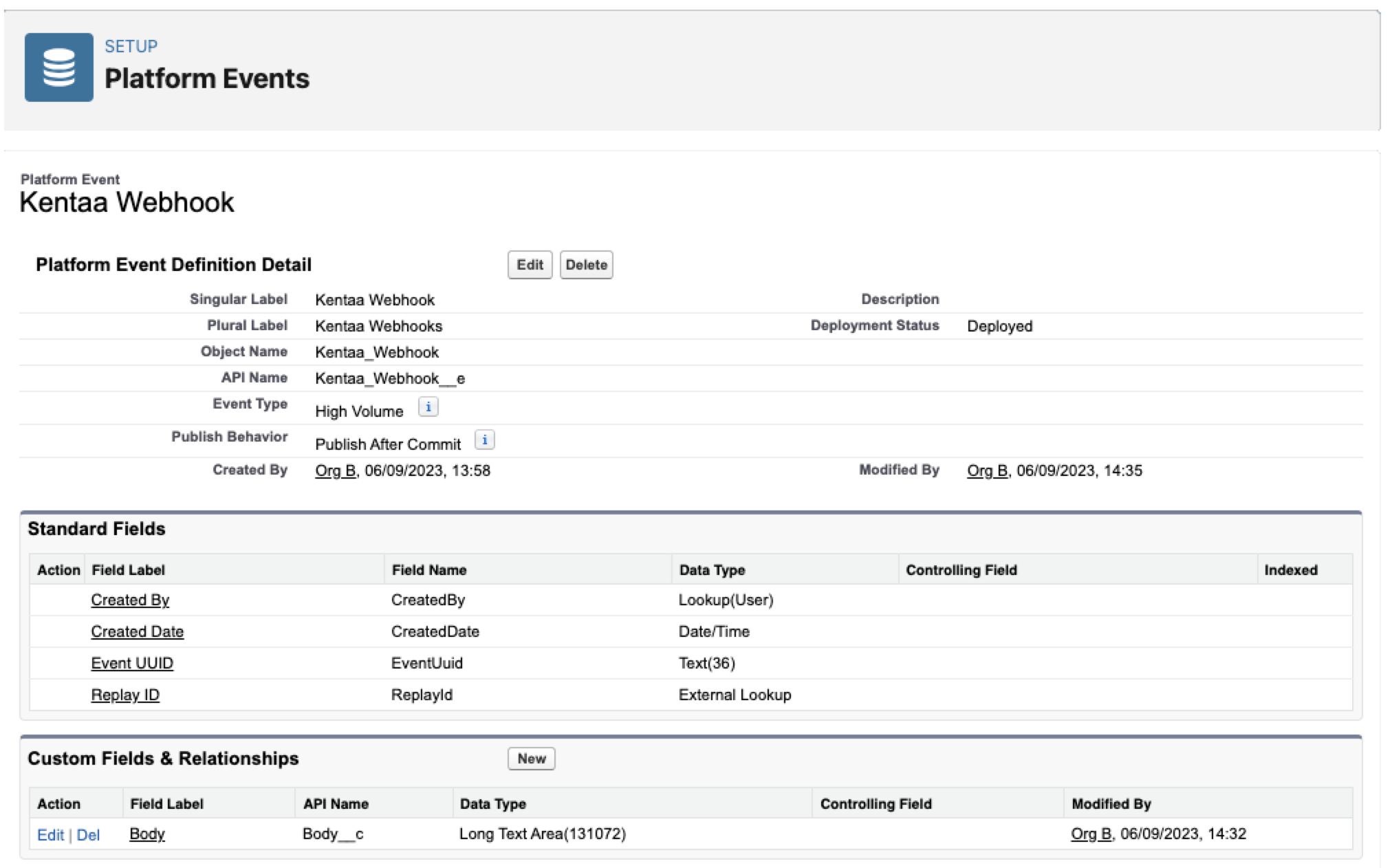
Start by creating a platform event to process the Kentaa notifications. The platform event will have a single Body text area field capped at 131,072 bytes. This size always accommodates the full Kentaa notification payload.
Kentaa Named Credential
To retrieve the full event detail, the recipient of the webhook must call back into Kentaa using a combination of the object_type and object_id as the retrieval key. Retrieving this data is achieved below using flow.
Create a Named Credential to hold your Kentaa API key. At runtime, the named credential resolves the URL to the configured Kentaa physical endpoint. It securely manages the auth for an external service callout on behalf of the user performing the callout.
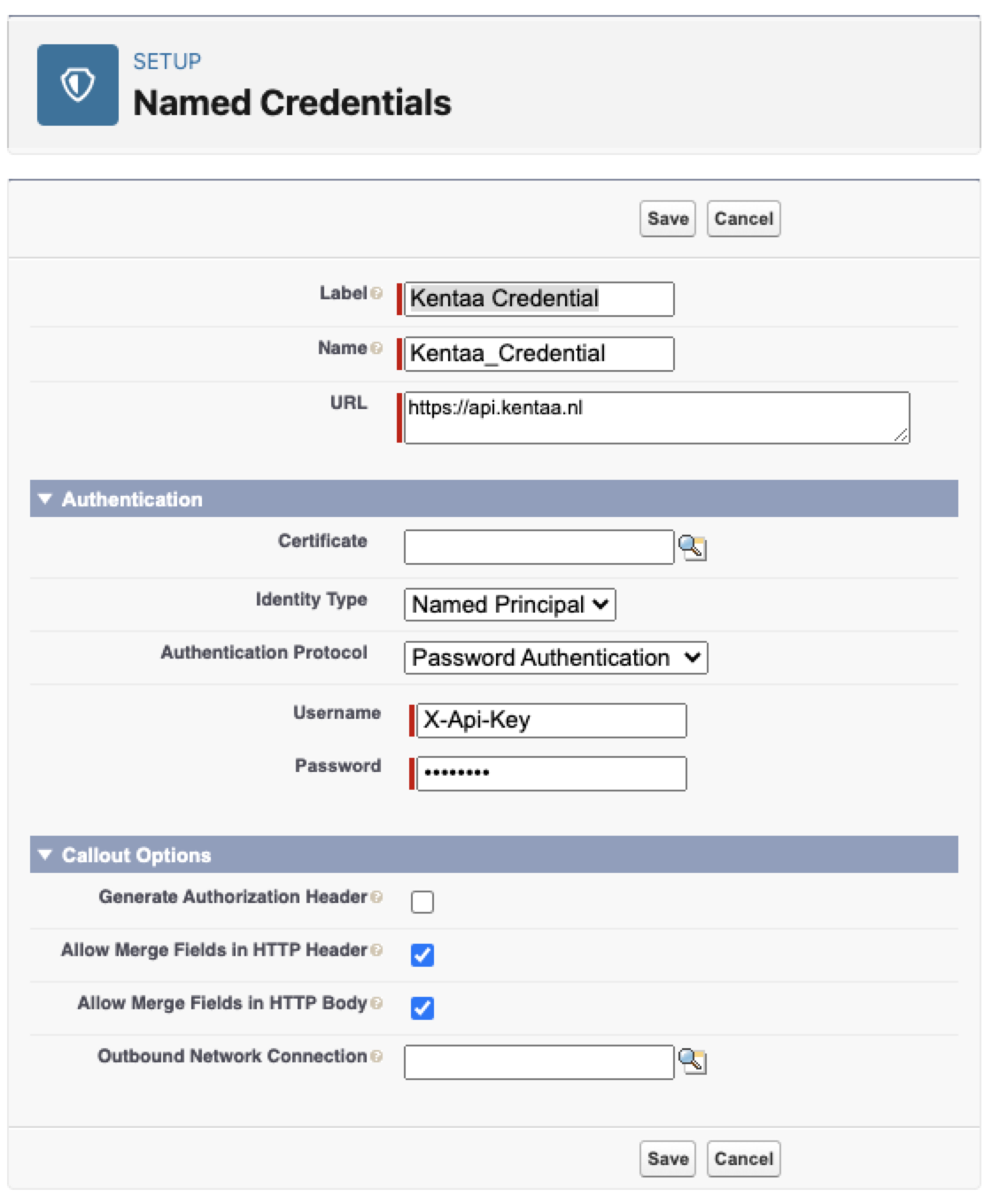
- Navigate to Named Credentials
- New ▽ > New Named Credential
- Label: Kentaa Credential
- Name: Kentaa_Credential
- URL: https://api.kentaa.nl
- Identity Type: Named Principal
- Auth Protocol: Password Auth
- Username: X-Api-Key
- Password: <api-token> (paste yours from Kentaa)
- Generate Authorization Header: [_] Uncheck
- Allow Merge Fields in HTTP Header: [X] Check
- Allow Merge Fields in HTTP Body: [X] Check
- If you use External Credentials, set the Managed Package Access: Streams
Click Save, then return to the Kentaa Platform Event flow
Salesforce External Services
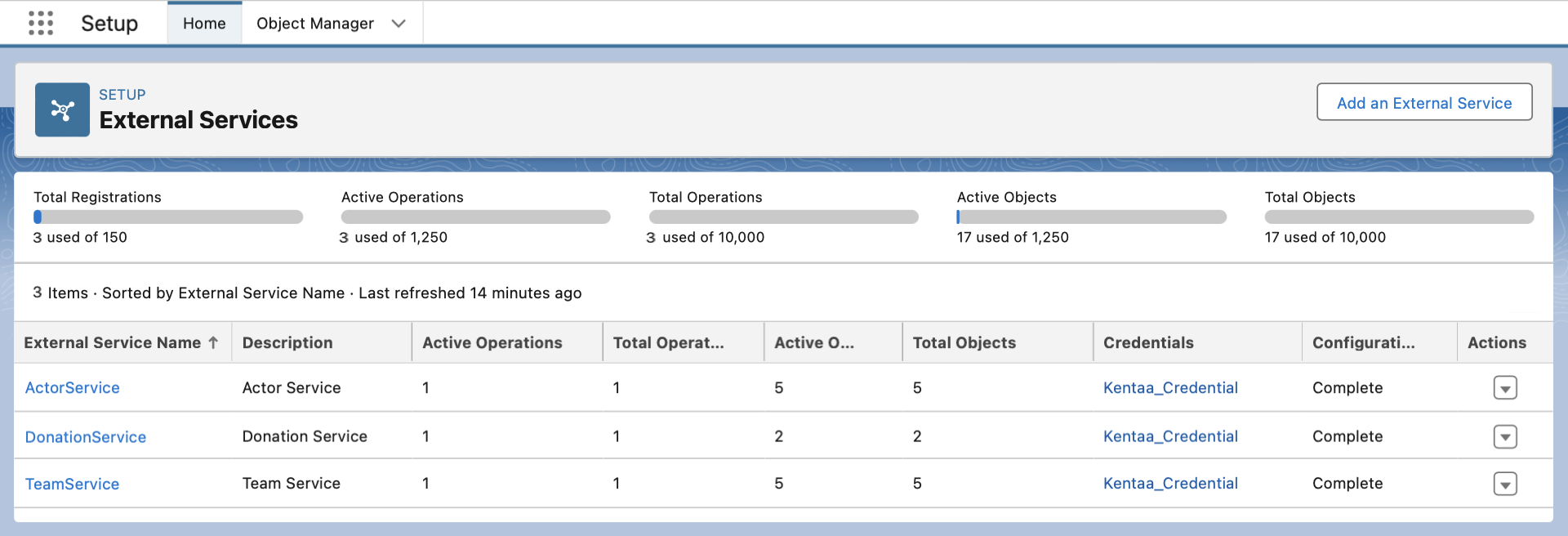
Create three external services to support the Team, Actor and Donation callouts.
Navigate to Setup > External Services
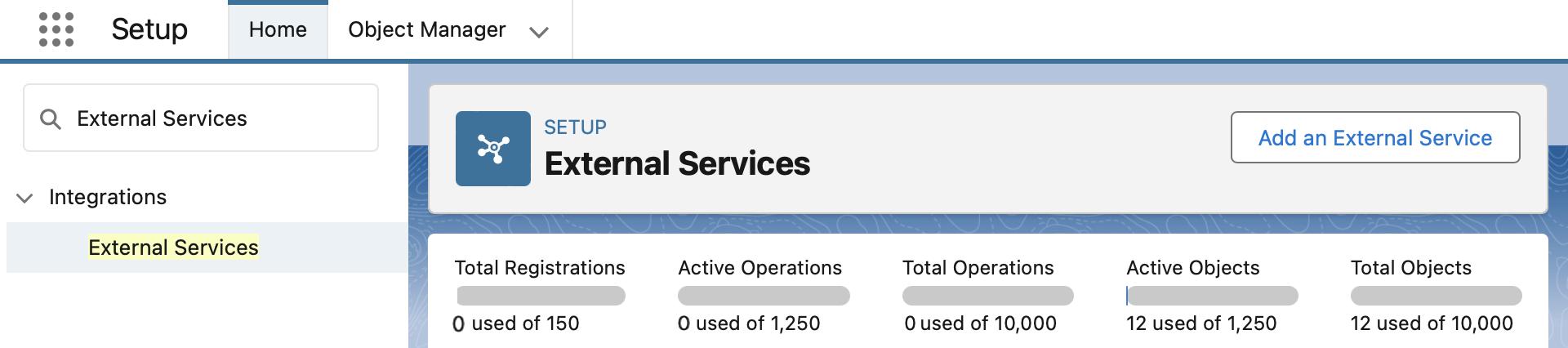
For each service, repeat the following steps.
1. Select an API source: From API Specification.
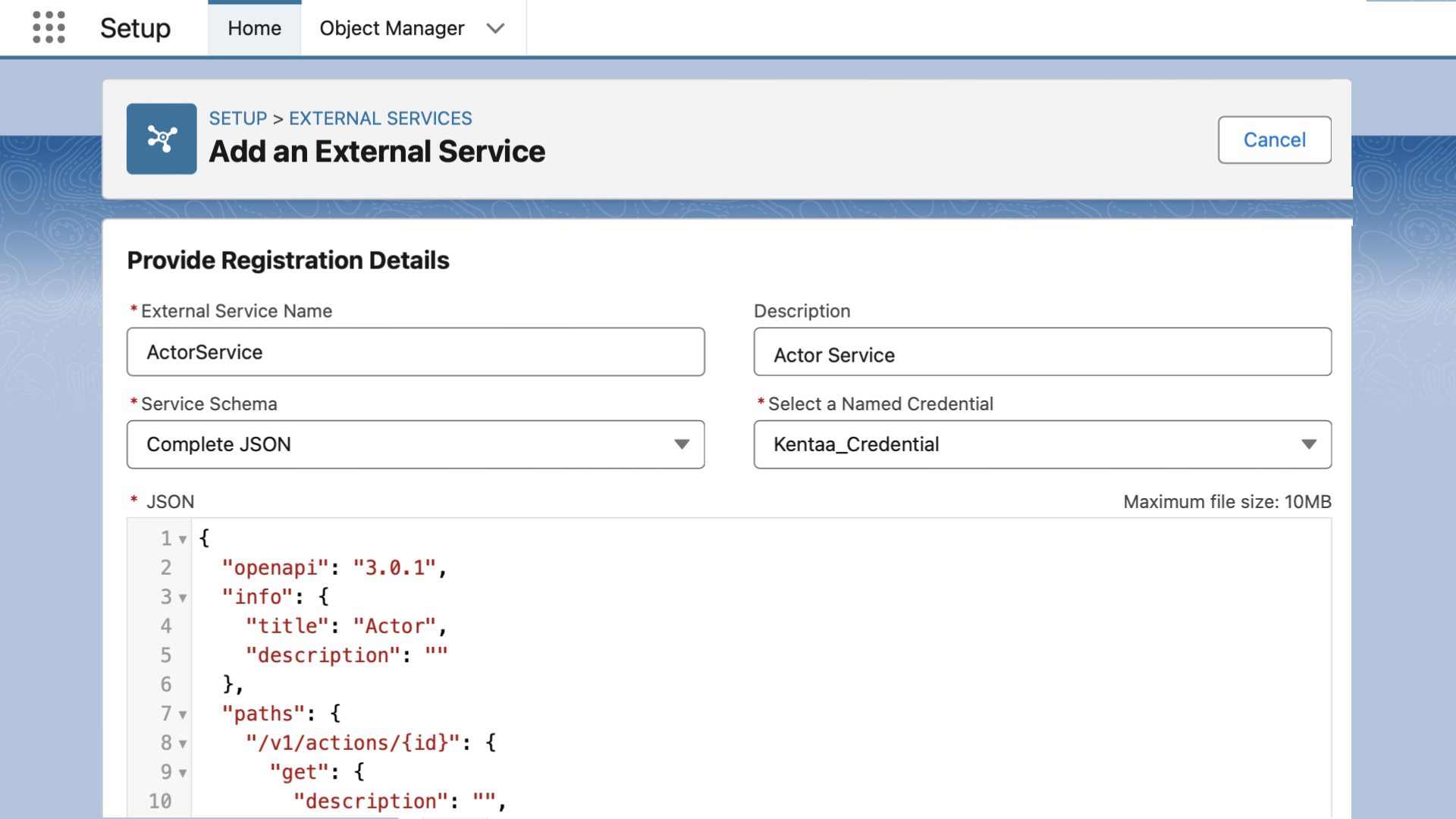
2. Complete the registration details for each service.
Team
- External Service Name: TeamService
- Named Credential: Kentaa_Credential
- Service Schema: Complete JSON
- JSON: Paste from Team Service Definition
Actor
- External Service Name: ActorService
- Named Credential: Kentaa_Credential
- Service Schema: Complete JSON
- JSON: Paste from Actor Service Definition
Donation
- External Service Name: DonationService
- Named Credential: Kentaa_Credential
- Service Schema: Complete JSON
- JSON: Paste from Donation Service Definition
3. Click Save & Next
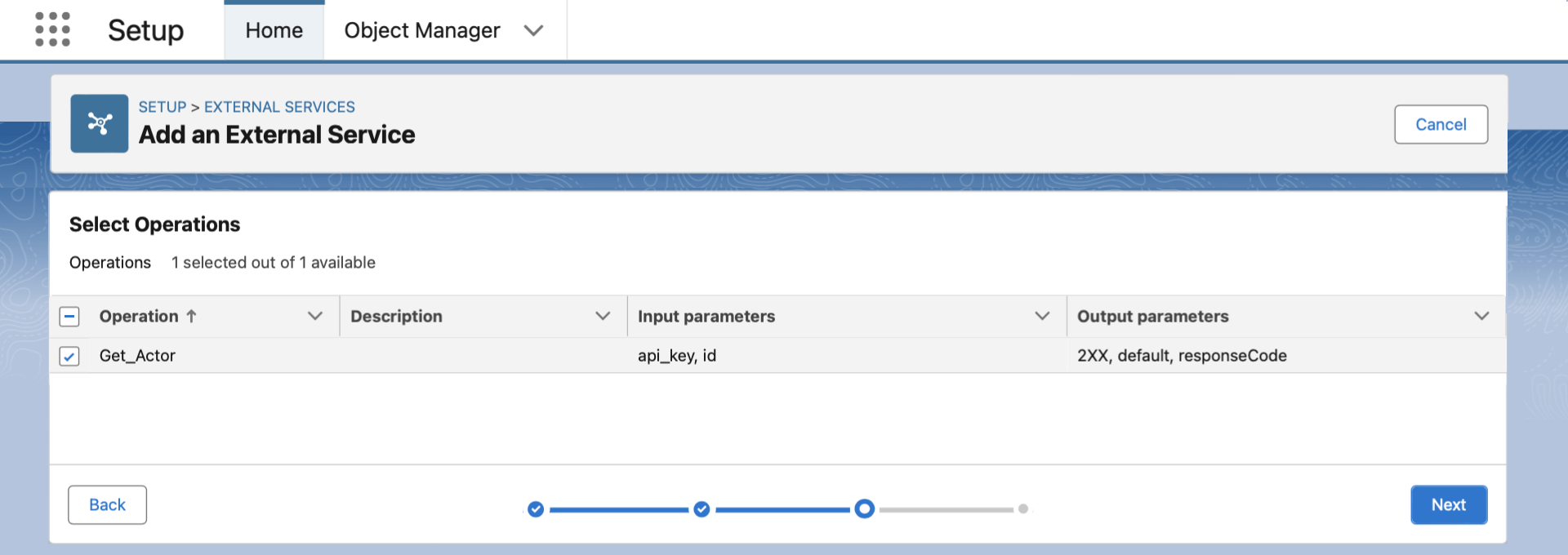
4. Check the available GET operation.
5. Click Finish.
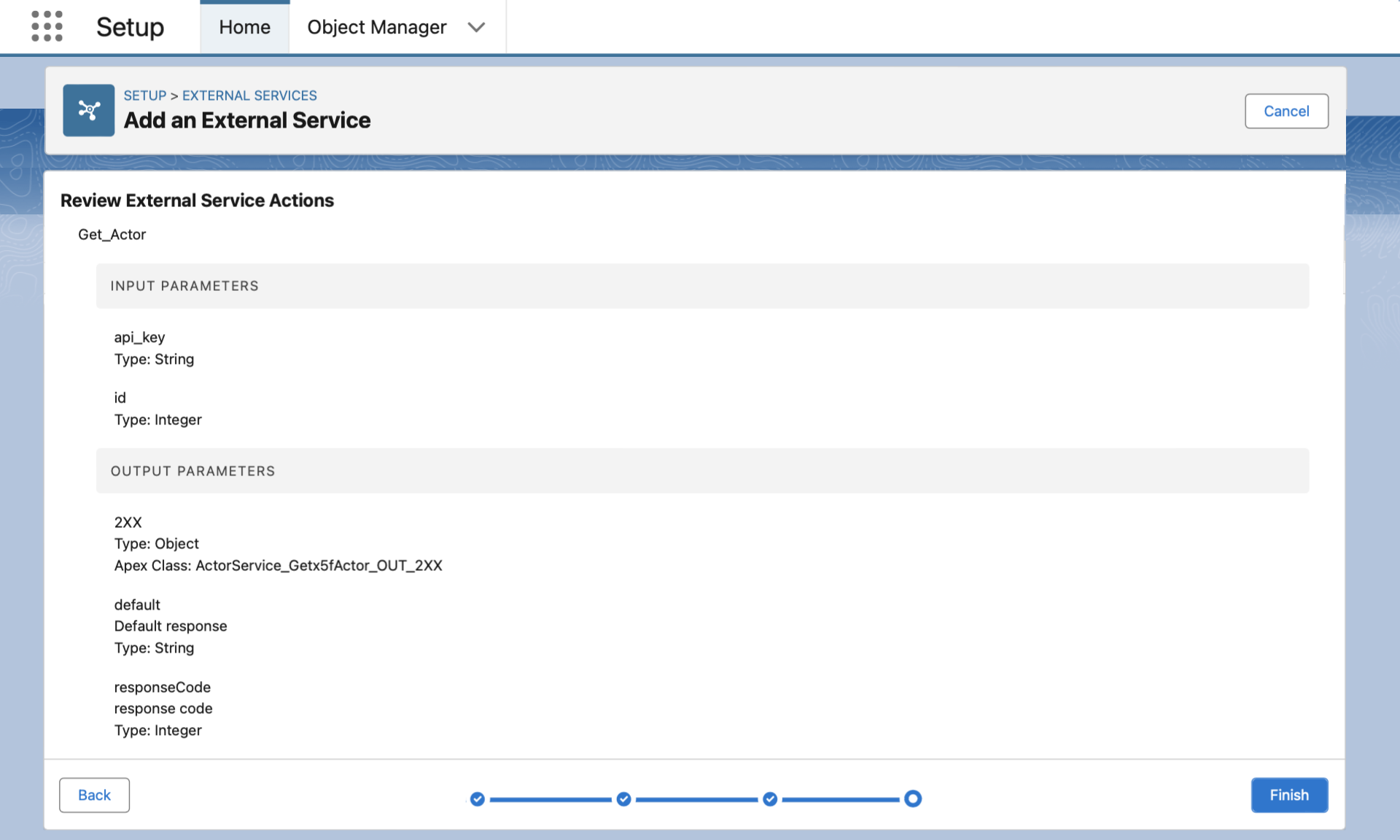
Three external services from Kentaa are now available for use in flow.
Flow A - Receive the webhook
Notifications sent from Kentaa will trigger the webhook flow. This flow receives each incoming Kentaa webhook, extracts the JSON payload, and publishes it in the body of a Platform Event.
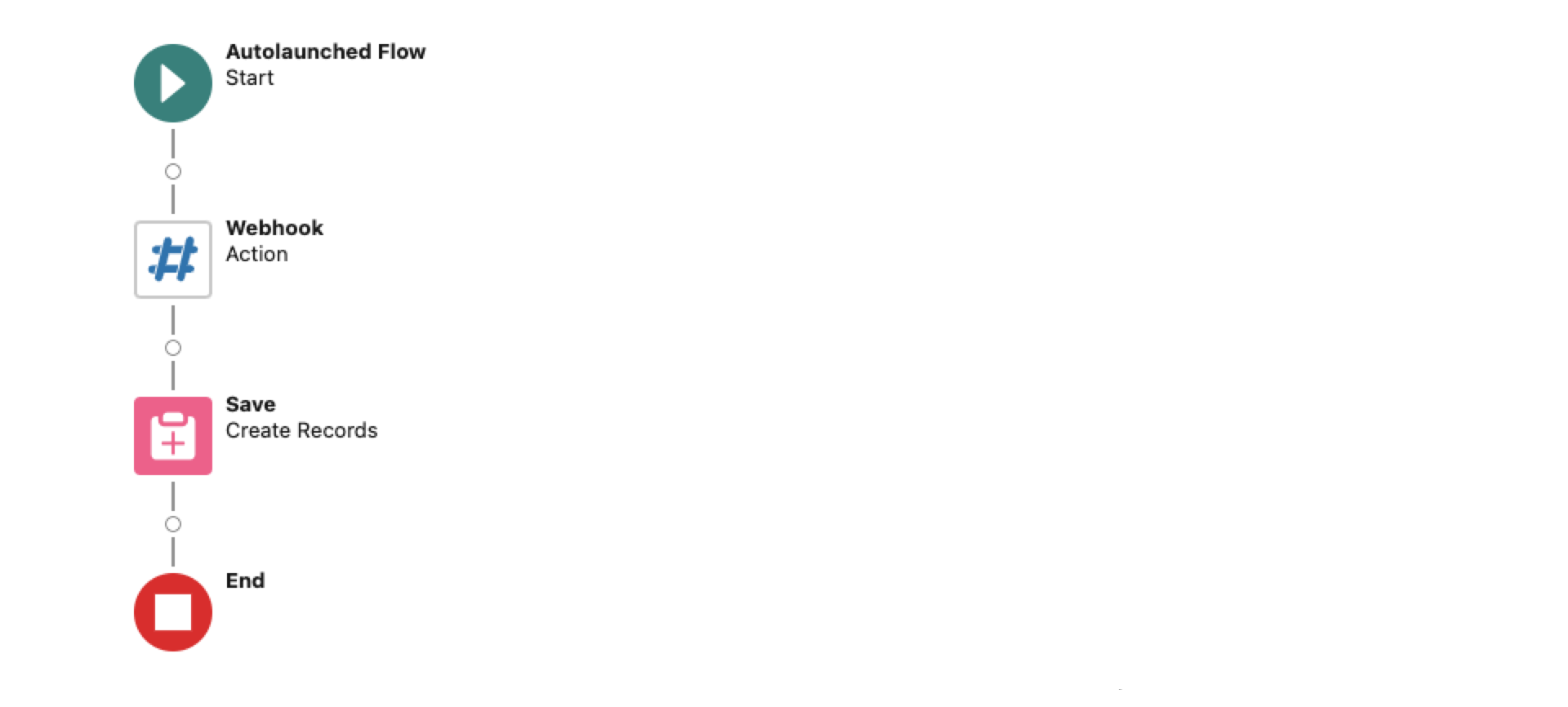
1. Convert the webhook payload to a platform event
- Follow the site setup video if you don't already have a Site configured.
- Go to the Streams app > Integrations tab > click New Webhook Flow
- Add a Streamscript action, with Name: Webhook
- Paste in below script then click Done
# Streamscript
$Webhook.response  = '200 - OK'
$Kentaa_Webhook__e = New-Kentaa_Webhook__e
$Kentaa_Webhook__e.Body__c = $Webhook.request
return $Kentaa_Webhook__e
The script returns a custom Platform Event that holds the event notification JSON.
2. Publish the platform event
- Add a Create Records element, with Name: Save Platform Event
- Set Create a Record from These Values to the
Webhook > recordoutput - Click Done
3. Save and activate the flow
- Use this specific API Name: Webhook_Streams_Kentaa
- Show Advanced > How to Run the Flow: choose System Context With Sharing
This flow setting ensures the Site Guest User can insert records.
Flow B - process the events
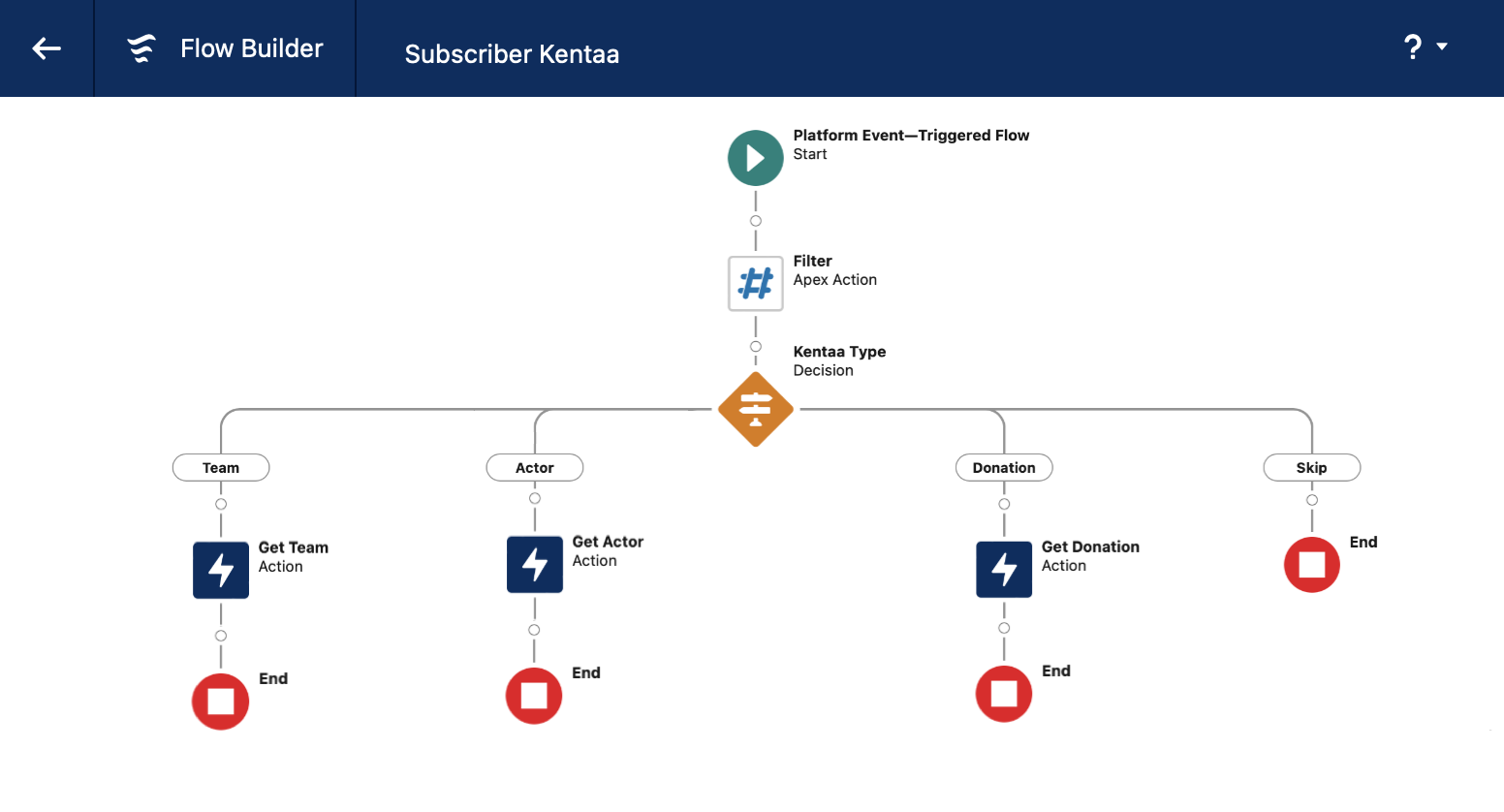
The Platform Event converts the parallel event notifications to a serial collection, providing a view across related inbound events in the same flow execution. Each notification in the batch is categorised by type: either donations (Tasks), fundraising actors (Contacts), and teams (Accounts).
Duplicate notifications are filtered out using the Decision step. The filtered events are directed to the 'skipped' path while the remaining events move forward for processing. These paths conclude with a Salesforce upsert.
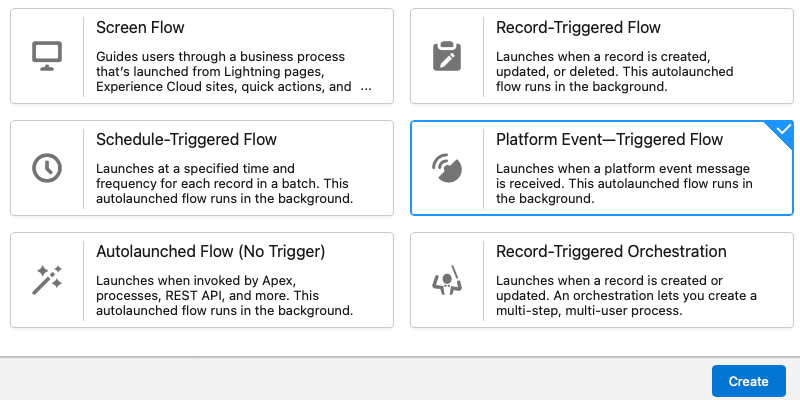
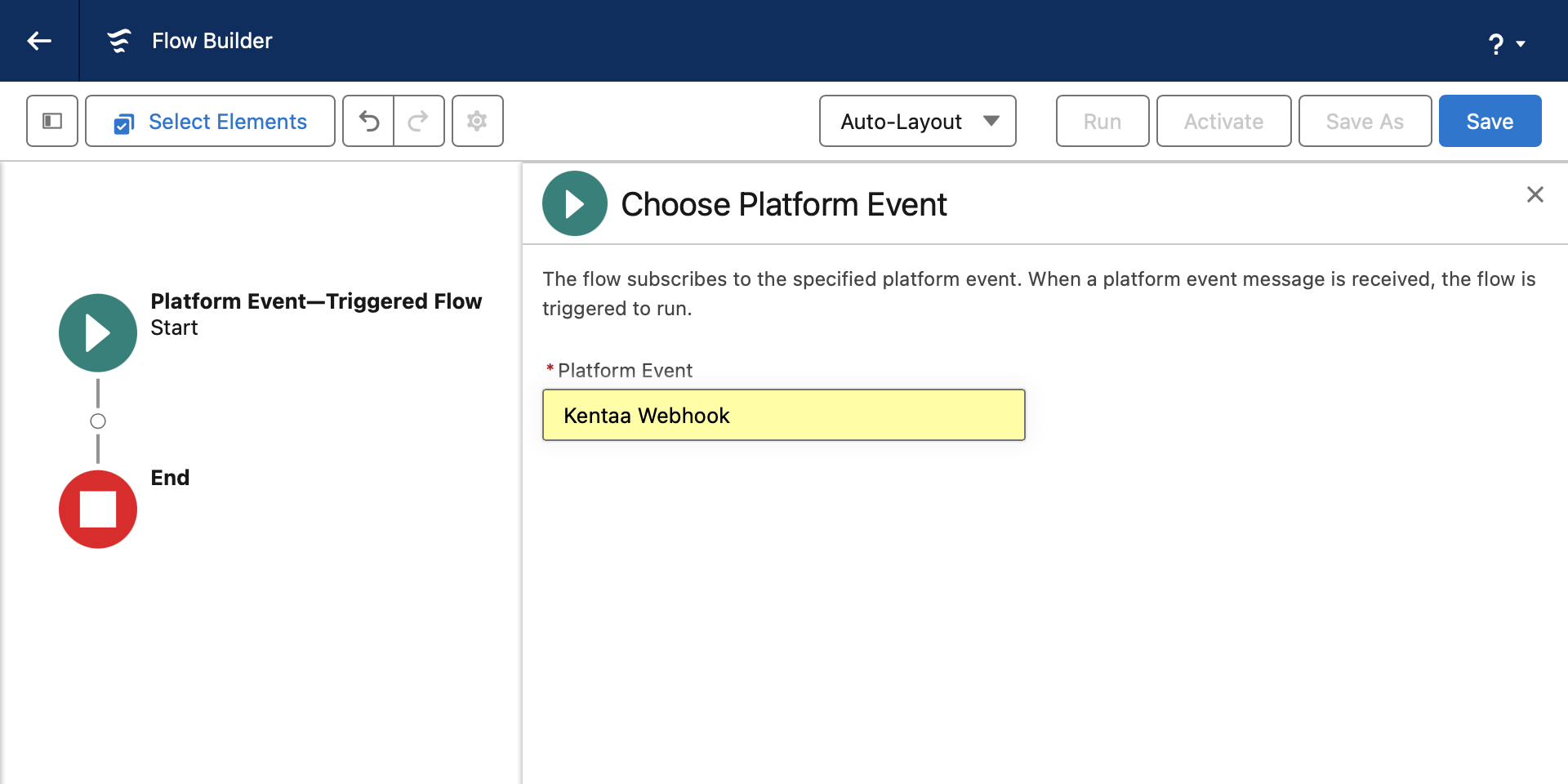
Start by creating a new Platform Event Triggered Flow in Setup > Flows > New. This flow will subscribe to the platform events published by the earlier webhook flow. Select the platform event type Kentaa Webhook. Save the flow.
 |
 |
1. Add the Filter step
Add a Streamscript step as the first step in the flow
- Label: Filter
- API Name: Filter
# Streamscript Bulk
Paste this logic which filters out duplicate events.
# Streamscript Bulk
$ids = []
$types = []
$uniqueKeys = []
$items = {!$Record}
foreach ($item in $items)
{
    # read the webhook body
    $o = Json-Decode $item.Data__c

    # filter
    $id = $o.object_id
    $type = `$o.object_type|$o.event_type`
    $key = `$type|$id` # eg: team|sign_ups.create|12345

    # mark duplicates as null
    if ($uniqueKeys.contains($key))
    {
        $id = null
        $type = null
    }

    # collect items
    $uniqueKeys.add($key)
    $types.add($type)
    $ids.add($id)
}

return -num $ids -text $types
2. Add the Decision for Event Type
The Decision step will route events from the filter to Team / Actor / Donation paths. Other events go to the Skip path.
| Object Type | Event Type | Value | Outcome | ||
|---|---|---|---|---|---|
| team | sign_ups.create | ➝ | team|sign_ups.create | ➝ | Team |
| actor | sign_ups.create | ➝ | action|sign_ups.create | ➝ | Actor |
| donation | sign_ups.create | ➝ | donation|sign_ups.create | ➝ | Donation |
| donation | donations.update | ➝ | donation|donations.create | ➝ | Skip |
| null | null | ➝ | null | ➝ | Skip |
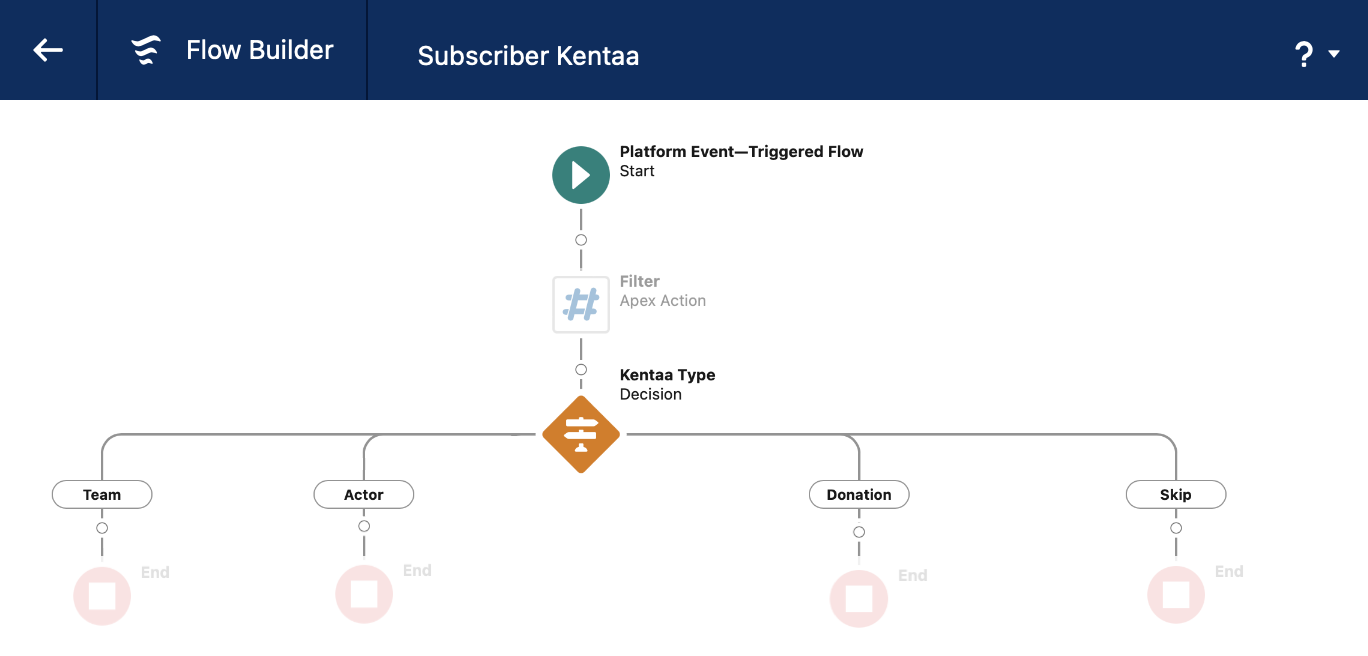
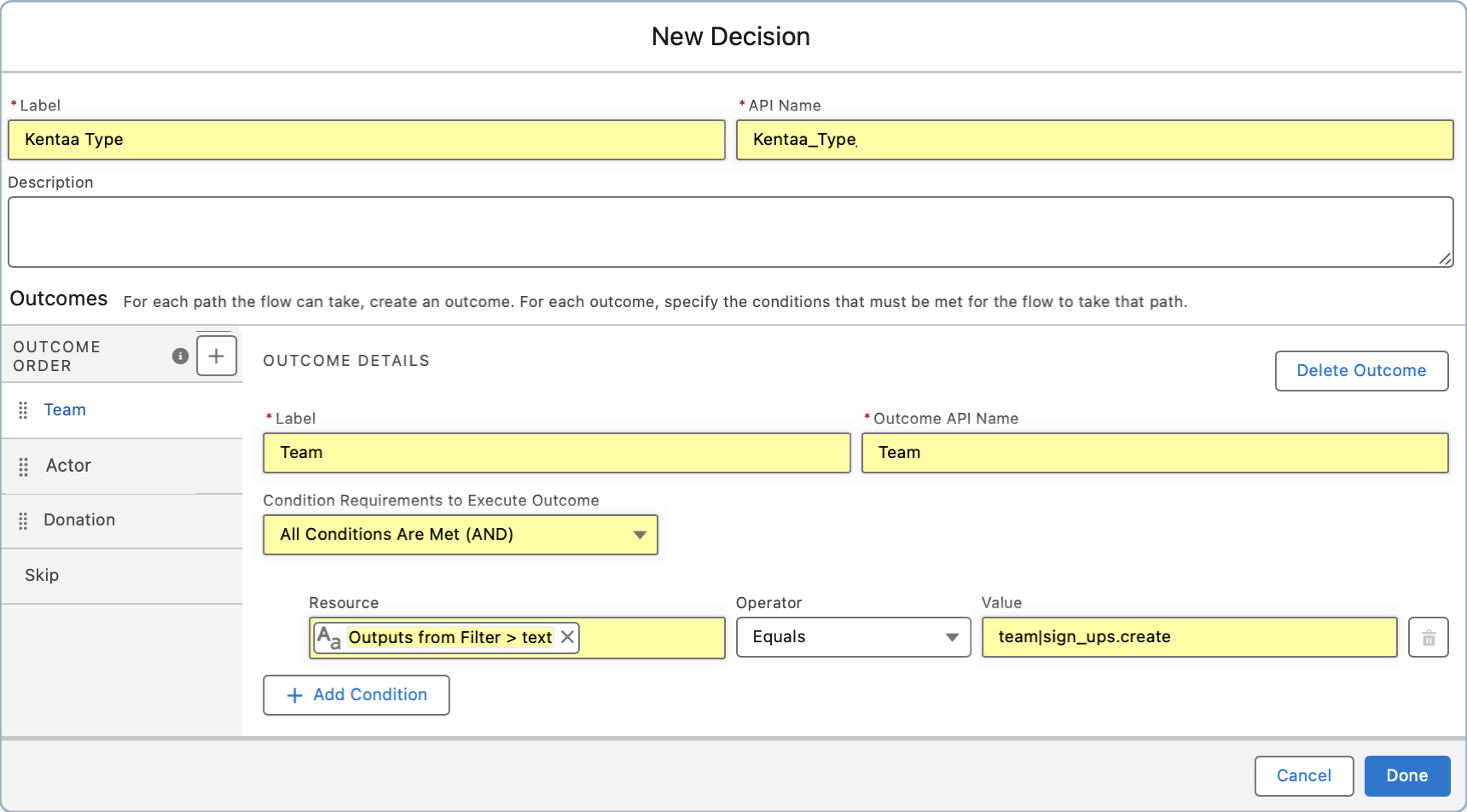
Add an Outcome: Team
- Label: Team
- Condition: {!Filter.text} equals team|sign_ups.create
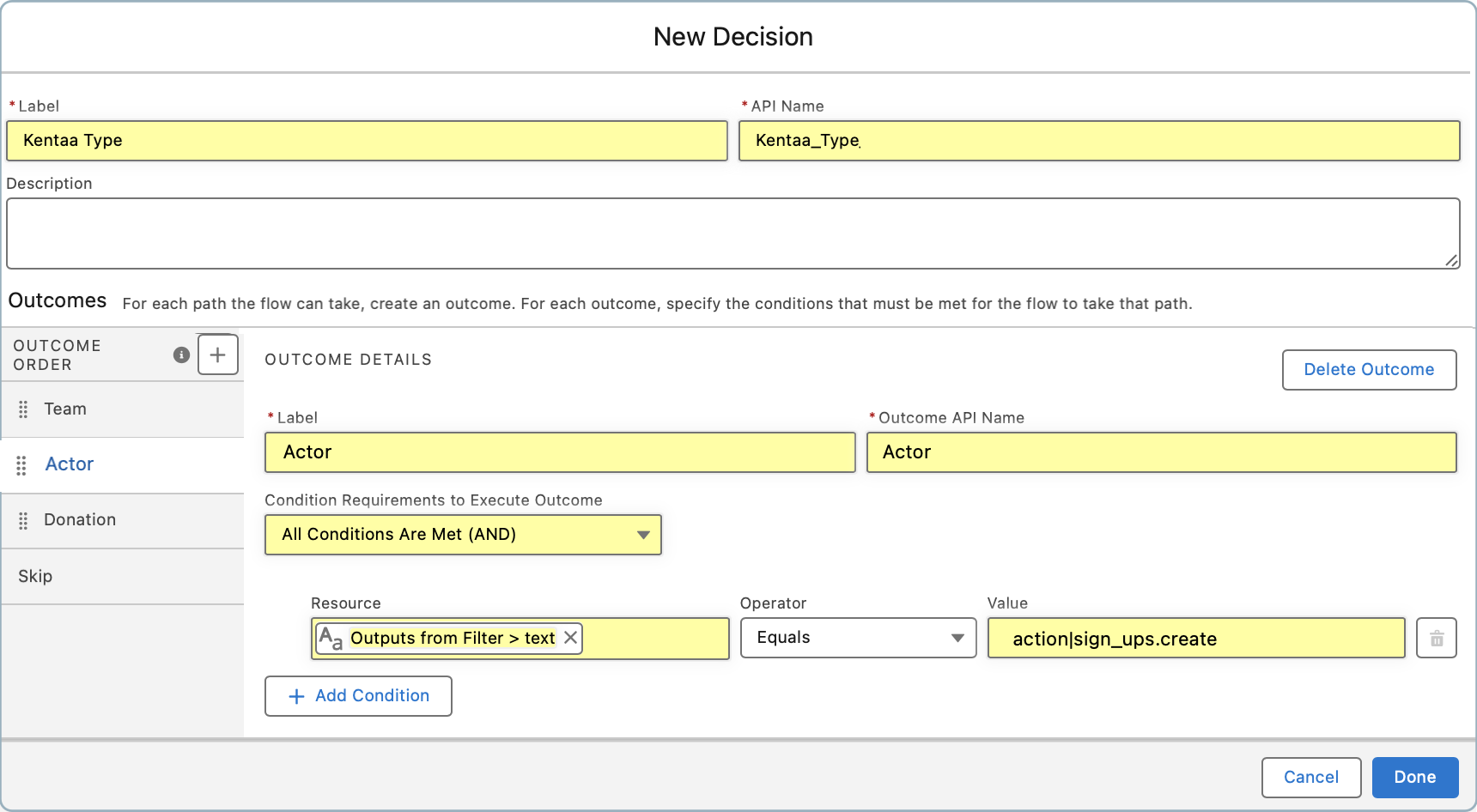
Add an Outcome: Actor
- Label: Actor
- Condition: {!Filter.text} equals action|sign_ups.create
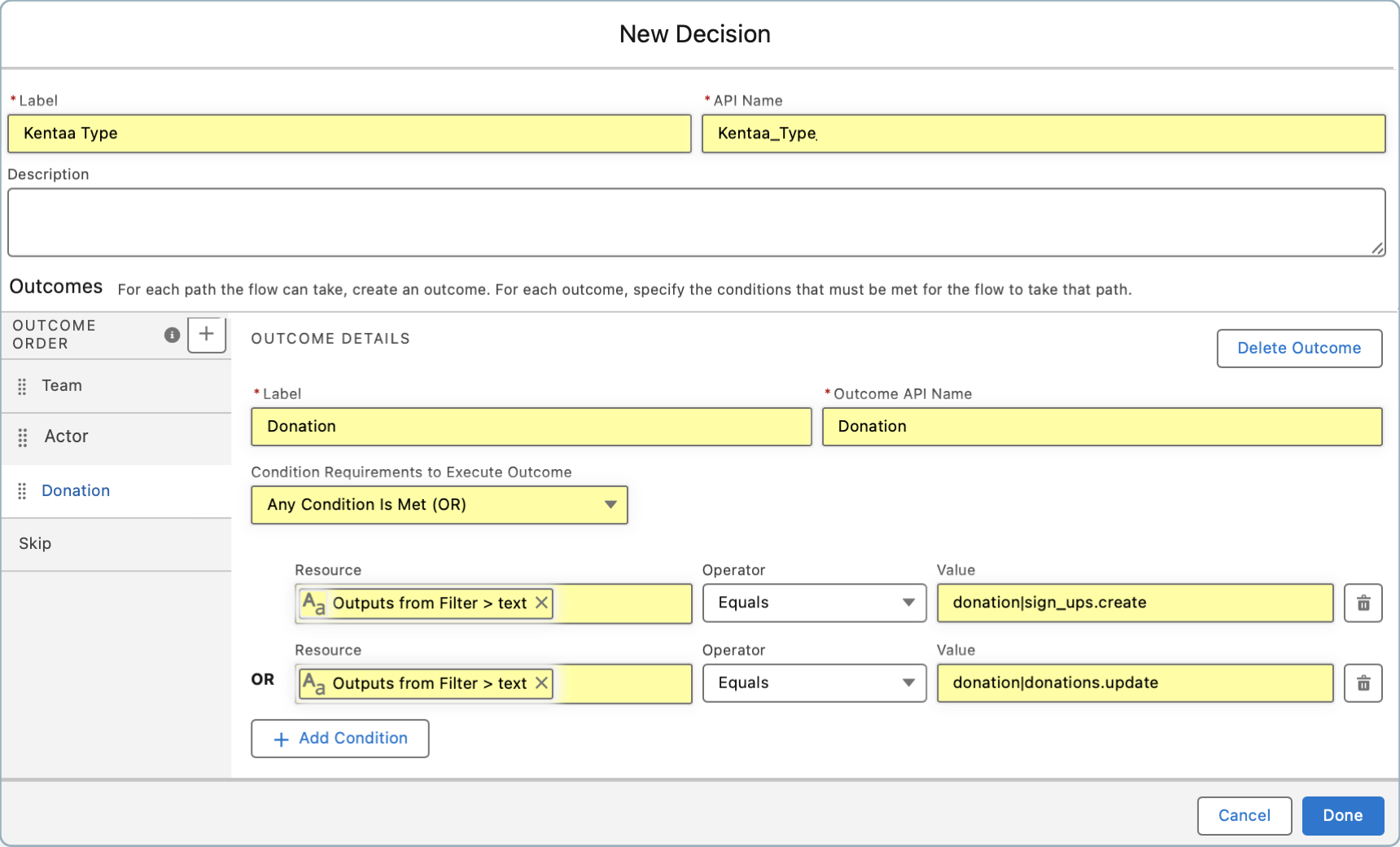
Add an Outcome: Donation
- Label: Donation
- Type: Any Condition is Met (OR)
- Condition 1: {!Filter.text} equals donation|sign_ups.create
- Condition 2: {!Filter.text} equals donation|donations.update
Default Outcome:
- Set the label: Skip
 |
 |
 |
3. Upsert the Team
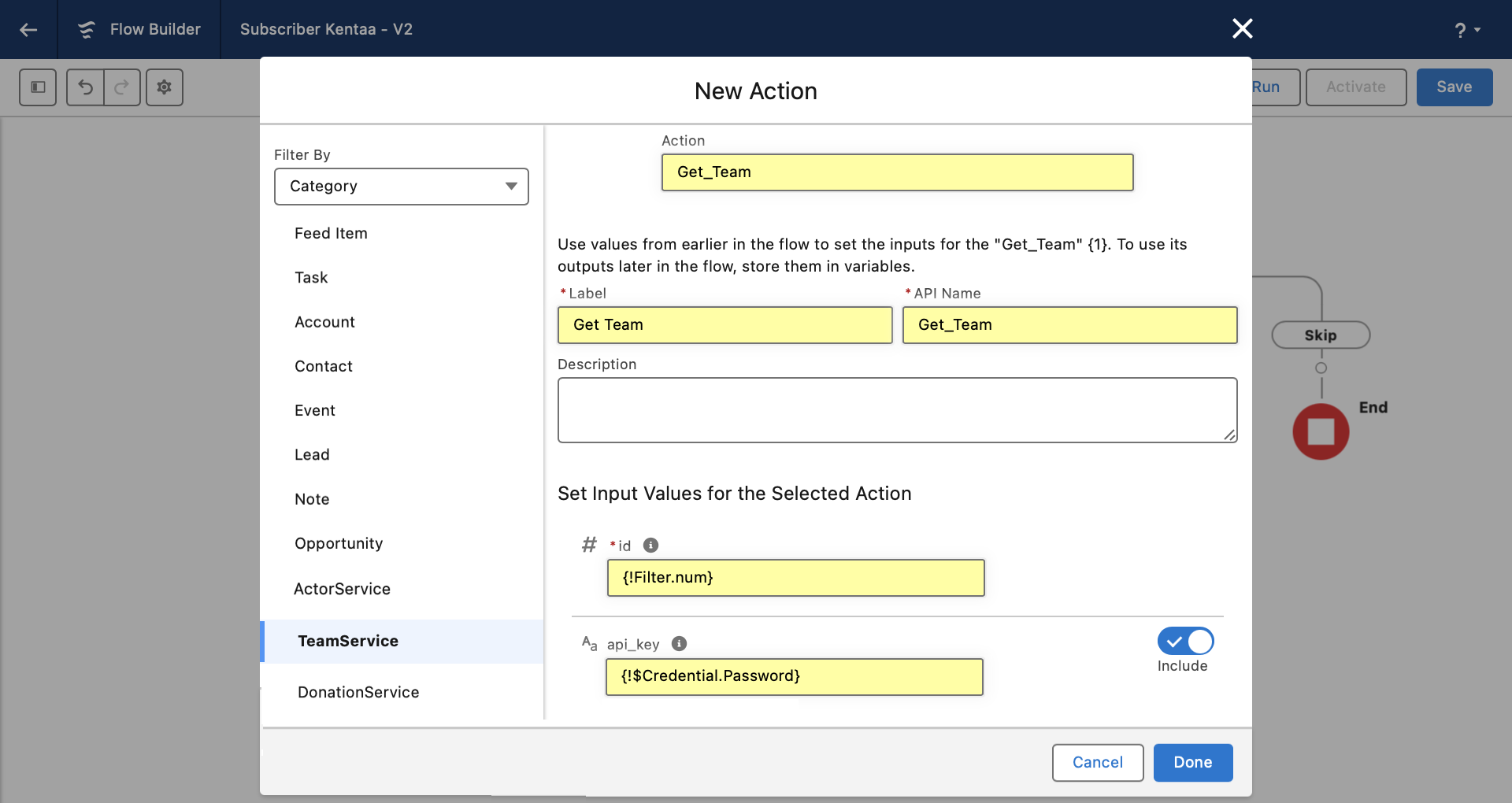
Under the Team path, select the Team External Service to perform the HTTP callout.
- Action: Get_Team
- API Name: Get_Team
- id: {!Filter.num}
- api_key: {!$Credential.Password}
Add a Get Records step (Account) to check if the team already exists in Salesforce.
- API Name: Get_Account_For_Team
- Object: Account
- Filter Condition: Kentaa_EID__c equals {!Get_Team.2XX.team.id}
- How Many Records to Store: Only the first record
Add an Assignment step to set the Kentaa Team ID and Kentaa Team Name using the response from the callout.
- API Name: Assign_Account
- Set value: {!Get_Account_For_Team.Kentaa_EID__c} equals {!Get_Team.2XX.team.id}
- Set value: {!Get_Account_For_Team.Name} equals {!Get_Team.2XX.team.name}
Add a Decision step to check for an empty ID on the retrieved account.
- 1st Outcome - set the label: Account Exists with condition: {!Get_Account_For_Team.ld} is null False
- Default Outcome - set the label Not Exists
Add an Update Records step under the Account Exists path.
- API Name: Update_Account
- Record or Record Collection: {!Get_Account_For_Team}
Add a Create Records step under the Not Exists path.
- API Name: Create_Account
- How Many Records to Create: One
- Record: {!Get_Account_For_Team}
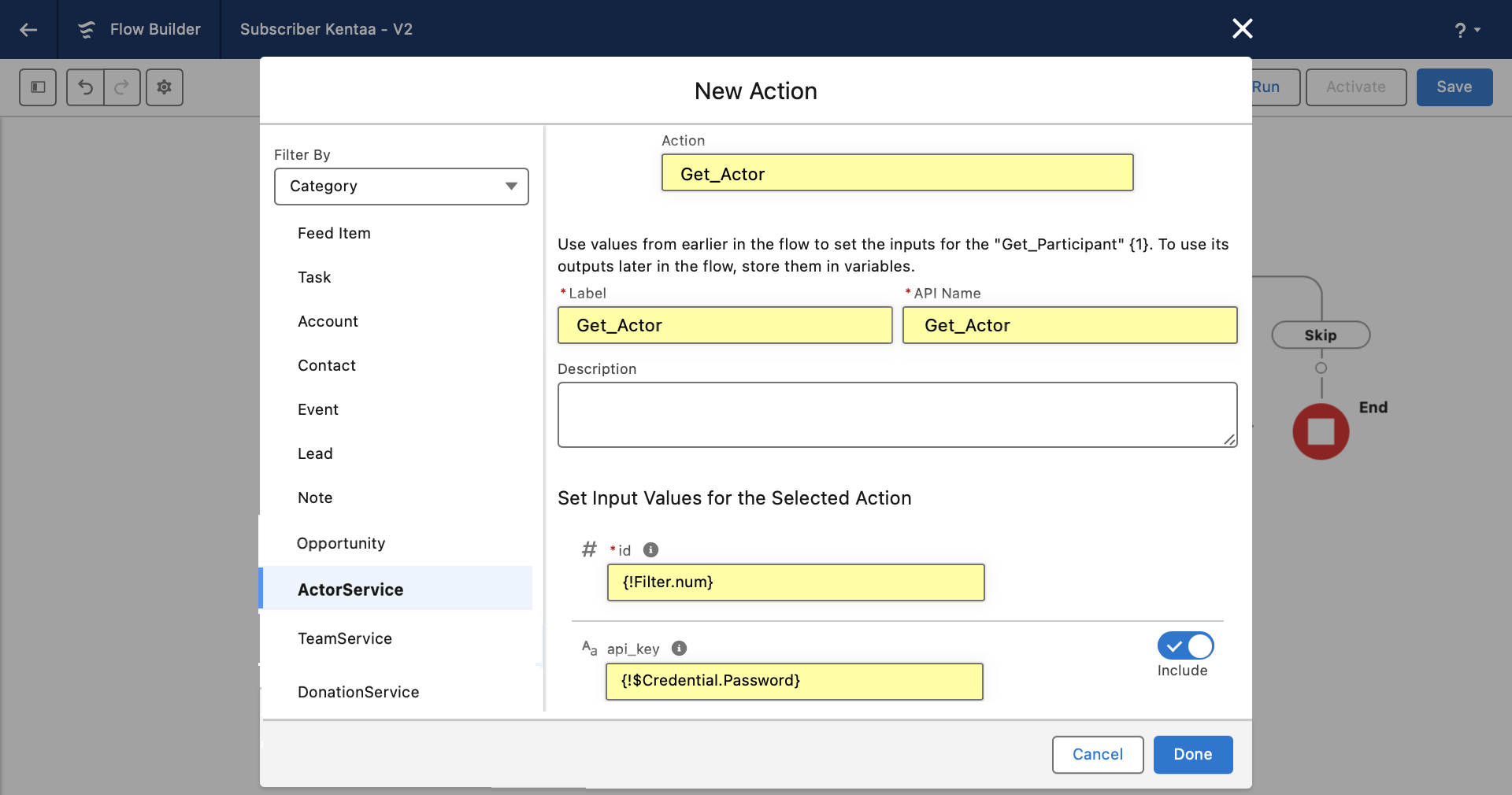
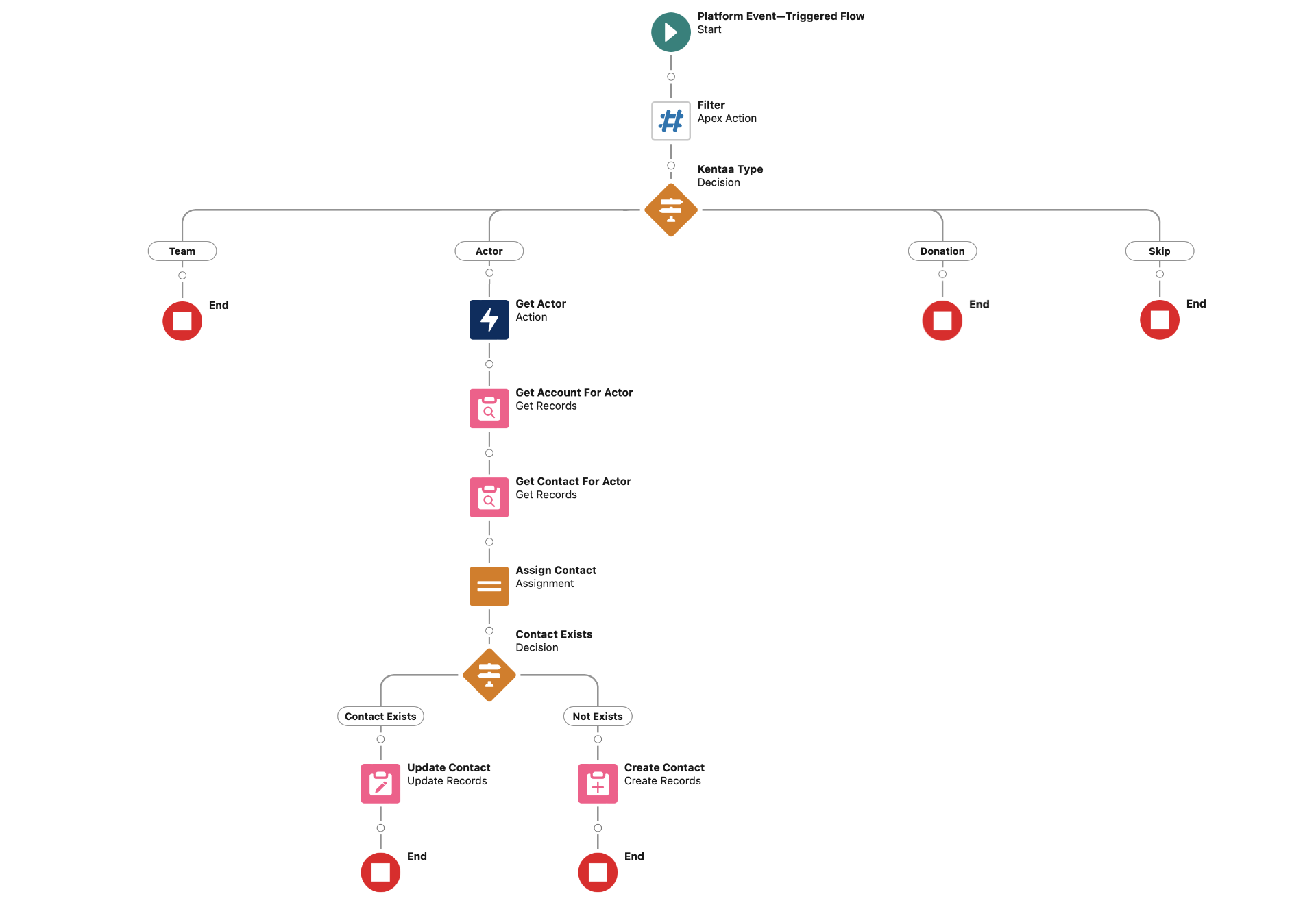
4. Upsert the Actor
Under the Actor path, select the Actor External Service to perform the HTTP callout.
- Action: Get_Actor
- API Name: Get_Actor
- id: {!Filter.num}
- api_key: {!$Credential.Password}
Add a Get Records step (Account) to locate the related team.
- API Name: Get_Account_For_Actor
- Object: Account
- Filter Condition: Kentaa_EID__c Equals {!Get_Actor.2XX.action.teamx5fid}
- How Many Records to Store: Only the first record
Then add a Get Records step (Contact) to check if the actor already exists in Salesforce.
- API Name: Get_Contact_For_Actor
- Object: Contact
- Filter Condition: Kentaa_EID__c equals {!Get_Team.2XX.action.id}
- How Many Records to Store: Only the first record
Add an Assignment step to populate the Contact fields.
- API Name: Assign_Contact
- Set value: {!Get_Contact_For_Actor.Kentaa_EID__c} equals {!Get_Actor.2XX.action.id}
- Set value: {!Get_Contact_For_Actor.Email} equals {!Get_Actor.2XX.action.owner.email}
- Set value: {!Get_Contact_For_Actor.FirstName} equals {!Get_Actor.2XX.action.firstx5fname}
- Set value: {!Get_Contact_For_Actor.LastName} equals {!Get_Actor.2XX.action.lastx5fname}
- Set value: {!Get_Contact_For_Actor.AccountId} equals {!Get_Account_For_Actor.id}
Add a Decision step to check for an empty ID on the retrieved contact.
- 1st Outcome - set the label: Contact Exists with condition: {!Get_Contact_For_Actor.ld} is null False
- Default Outcome - set the label Not Exists
Add an Update Records step under the Contact Exists path.
- API Name: Update_Contact
- Record or Record Collection: {!Get_Contact_For_Actor}
Add a Create Records step under the Not Exists path.
- API Name: Create_Contact
- How Many Records to Create: One
- Record: {!Get_Contact_For_Actor}
5. Upsert the Donation
This inserts a Task representing the Kentaa Donation. Before inserting, we resolve the Team ID to its corresponding Salesforce Account and the Actor ID to its corresponding Salesforce Contact. These will be mapped using the WhoId and WhatId fields on the task record.
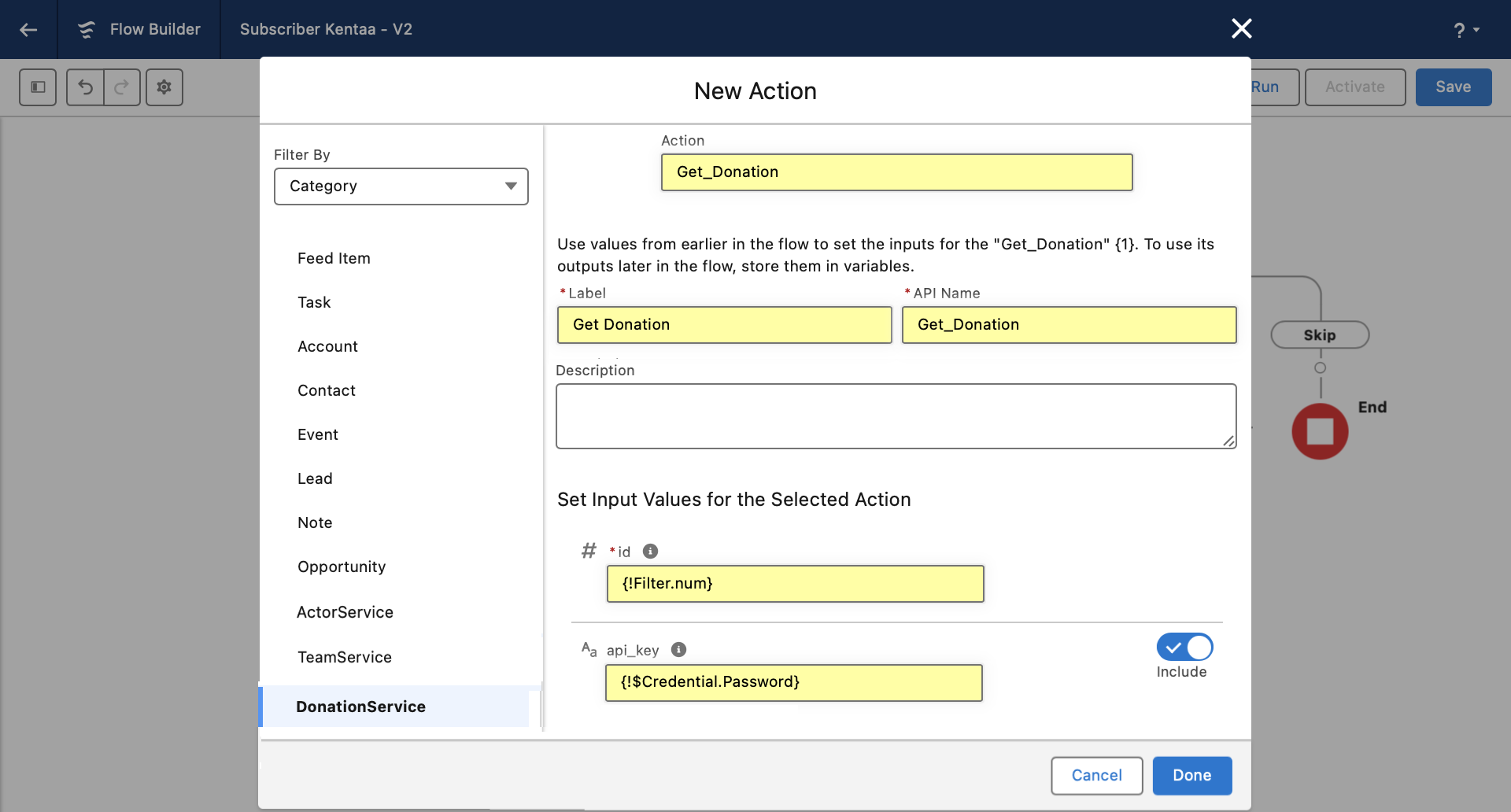
Under the Donation path, select the Donation External Service to perform the HTTP callout.
- Action: Get_Donation
- API Name: Get_Donation
- id: {!Filter.num}
- api_key: {!$Credential.Password}
Add a Get Records step (Account) to locate the related team.
- API Name: Get_Account_For_Donation
- Object: Account
- Filter Condition: Kentaa_EID__c equals {!Get_Actor.2XX.donation.teamx5fid}
- How Many Records to Store: Only the first record
Add a Get Records step (Contact) to locate the related actor.
- API Name: Get_Actor_For_Donation
- Object: Contact
- Filter Condition: Kentaa_EID__c equals {!Get_Actor.2XX.donation.actionx5fid}
- How Many Records to Store: Only the first record
Add a Create Records step (Task).
- API Name: Create_Donation
- How Many Records to Create: One
- Set the Description to {!Get_Donation.2XX.donation.amount}
- Set the Subject to Donation Received
- Set the WhatId to {!Get_Account_For_Donation.Id}
- Set the WhoId to {!Get_Contact_For_Donation.Id}
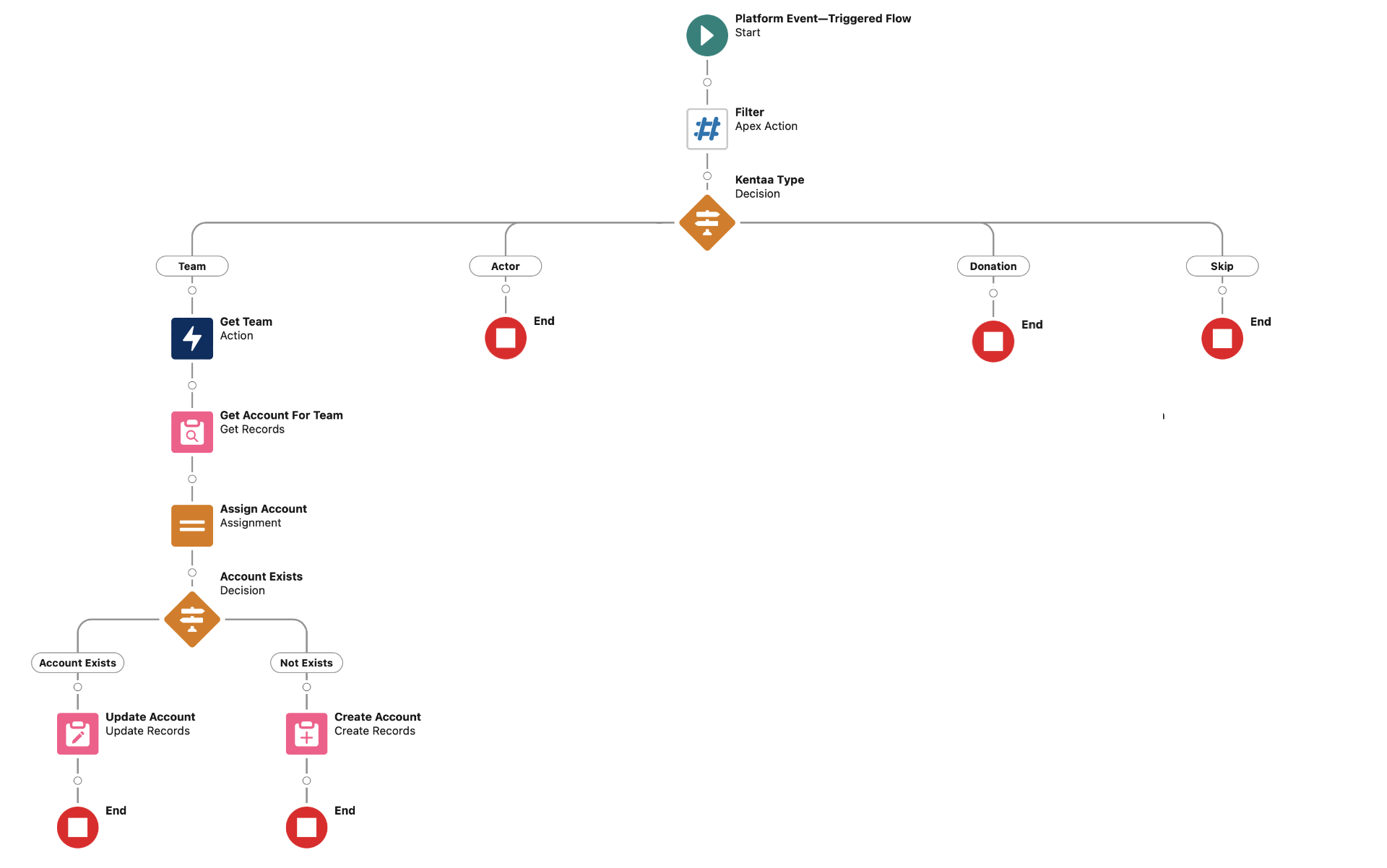
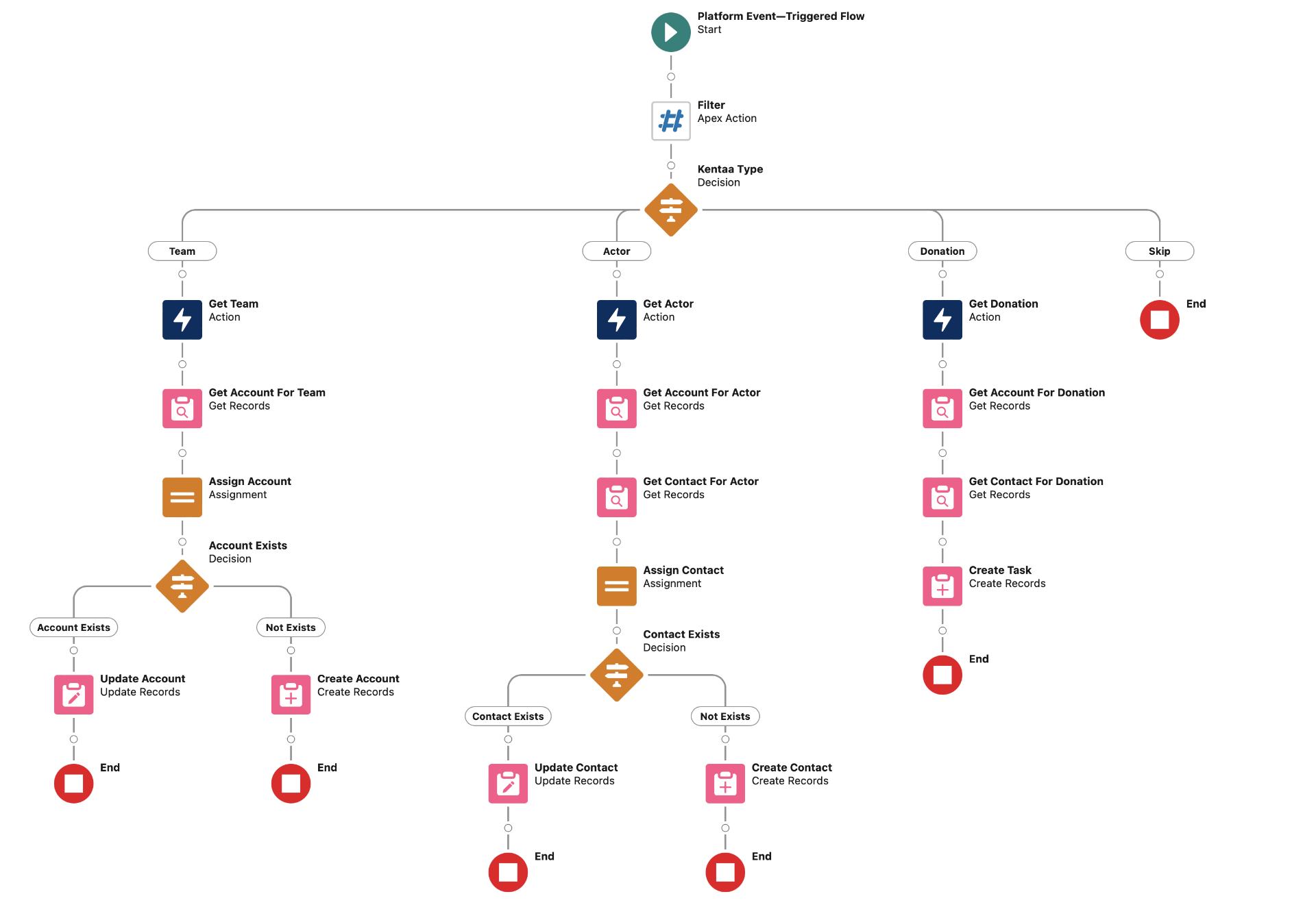
The completed flow now looks like this:
Testing the integration
Navigate to your participation page provisioned by the Kentaa team and choose: Generally for Test.
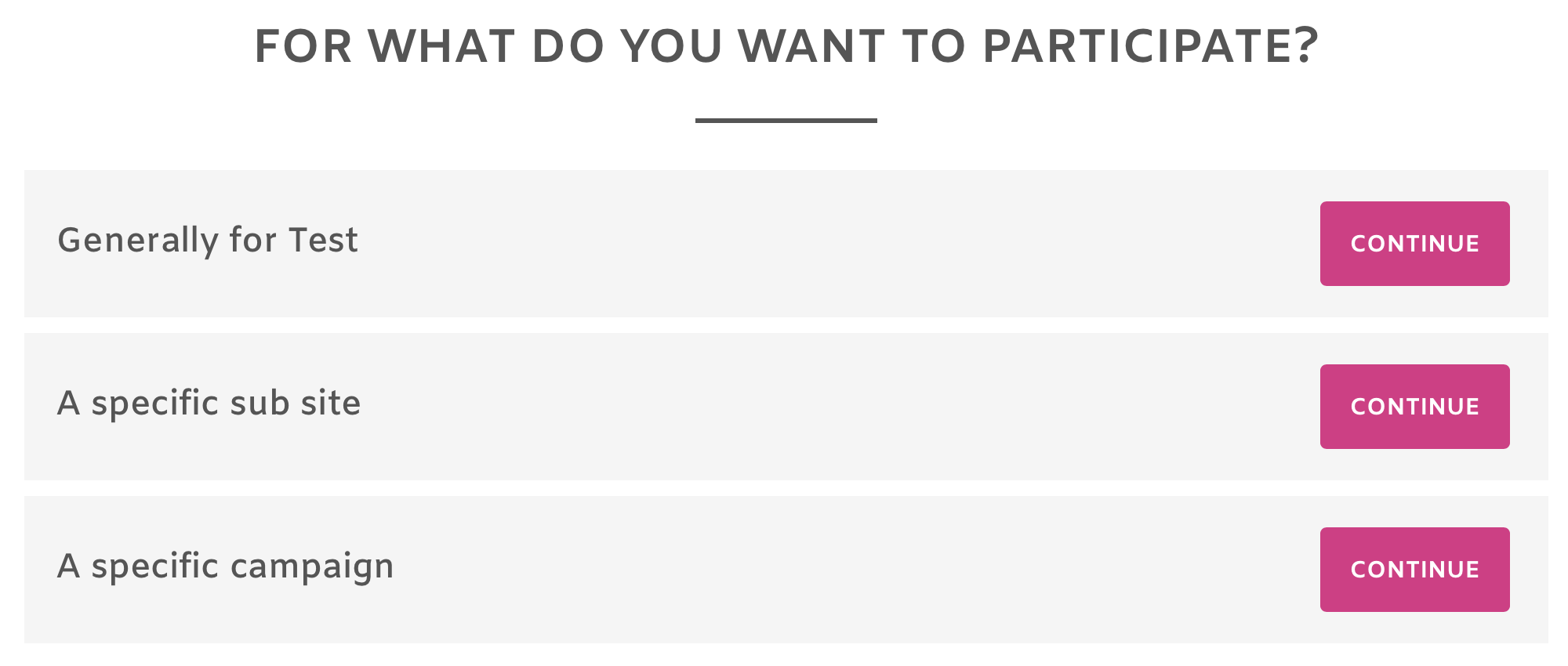
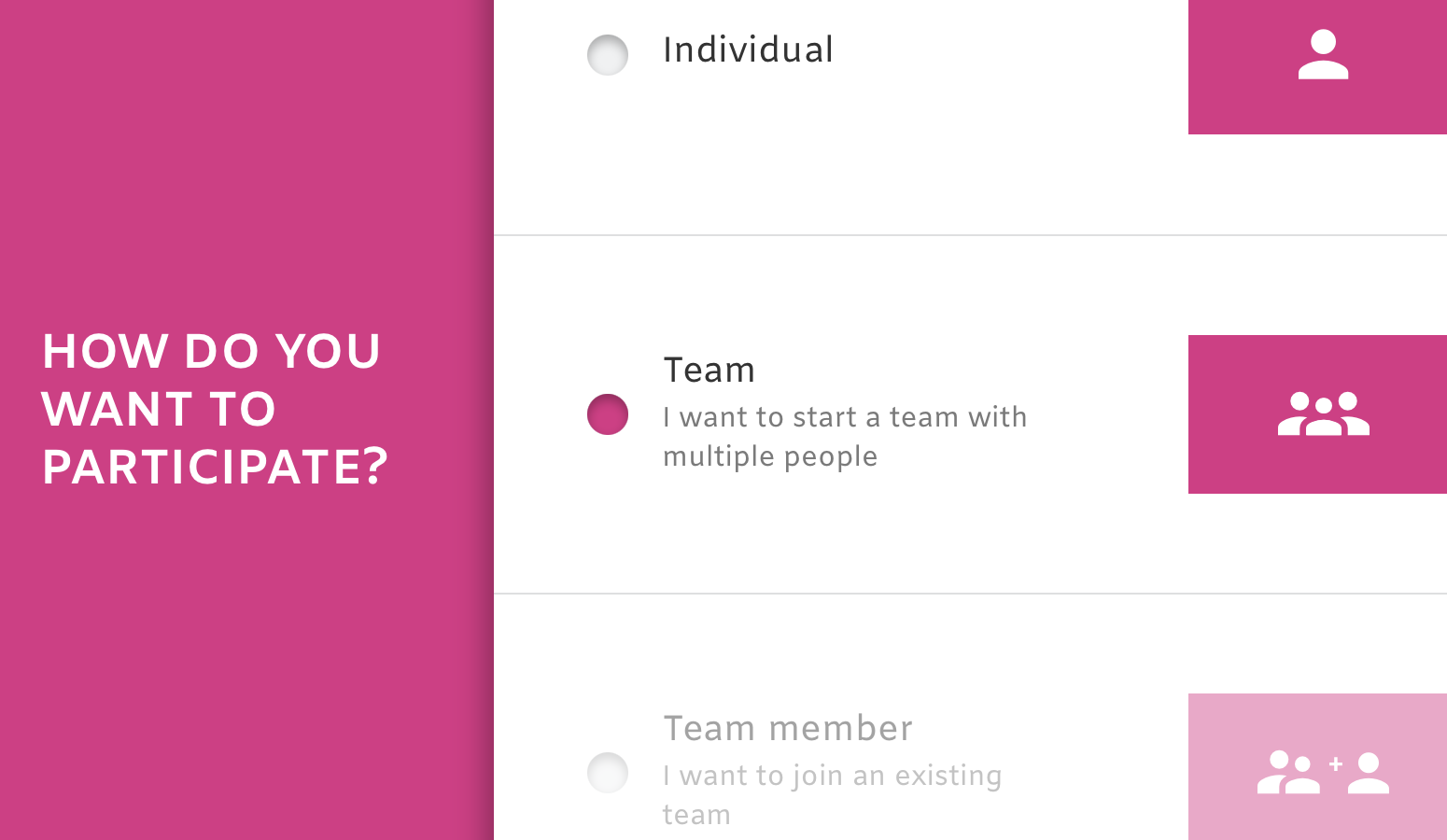
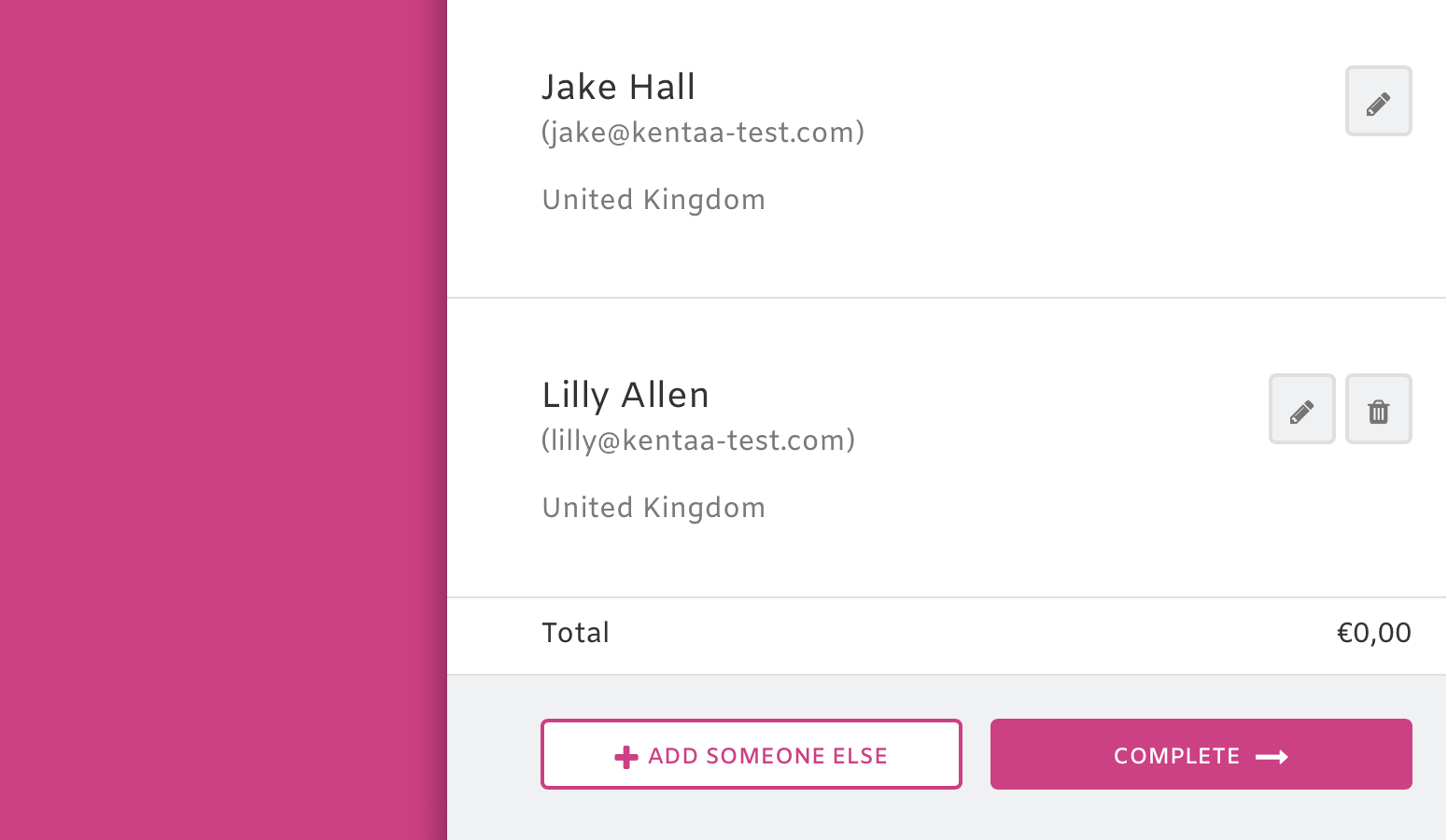
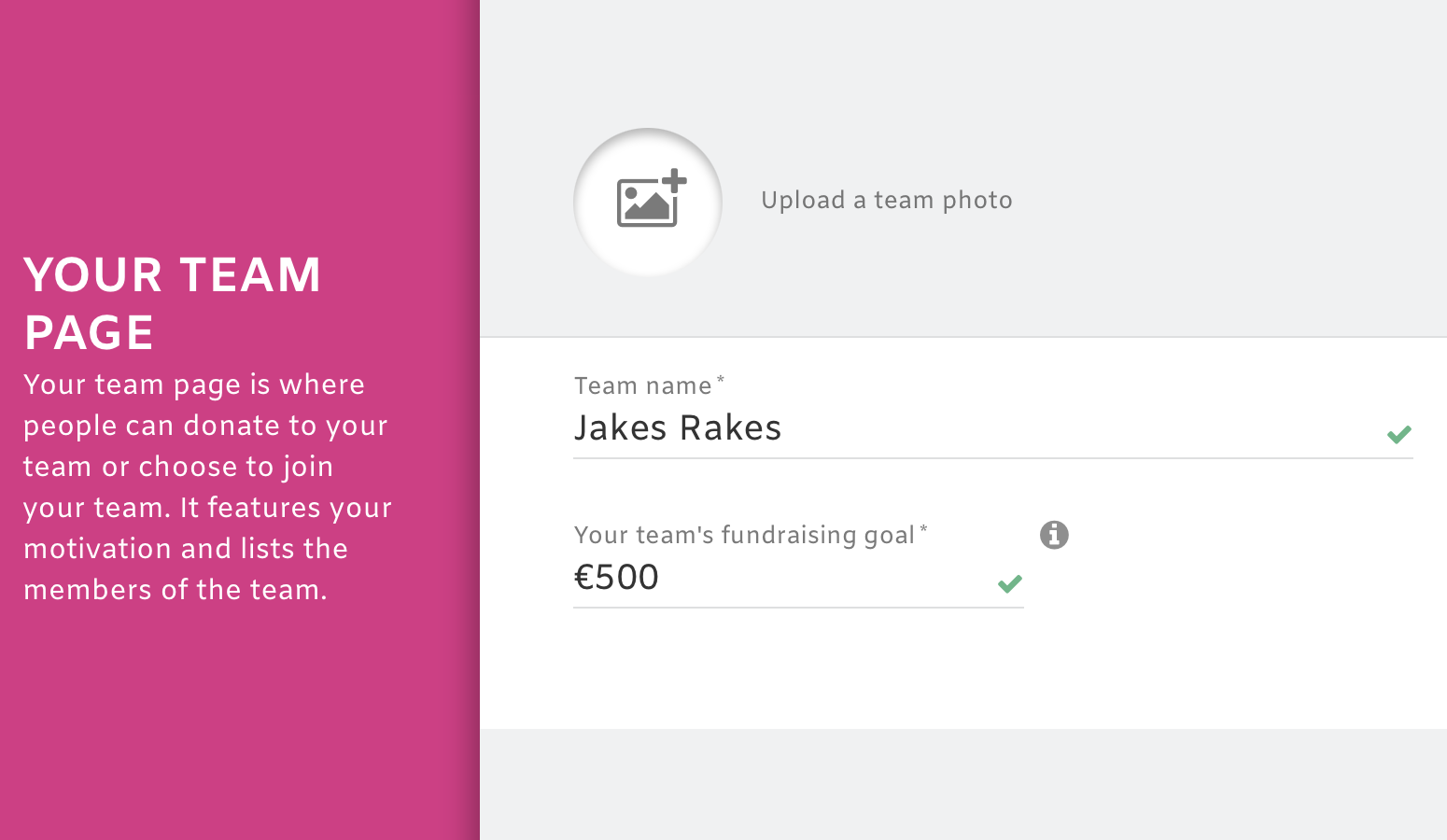
Select Team, then click Continue. Add your team leader, an additional team member, then name the team.
 |
 |
Finally, make a donation as the team leader via the simulated payment gateway.
 |
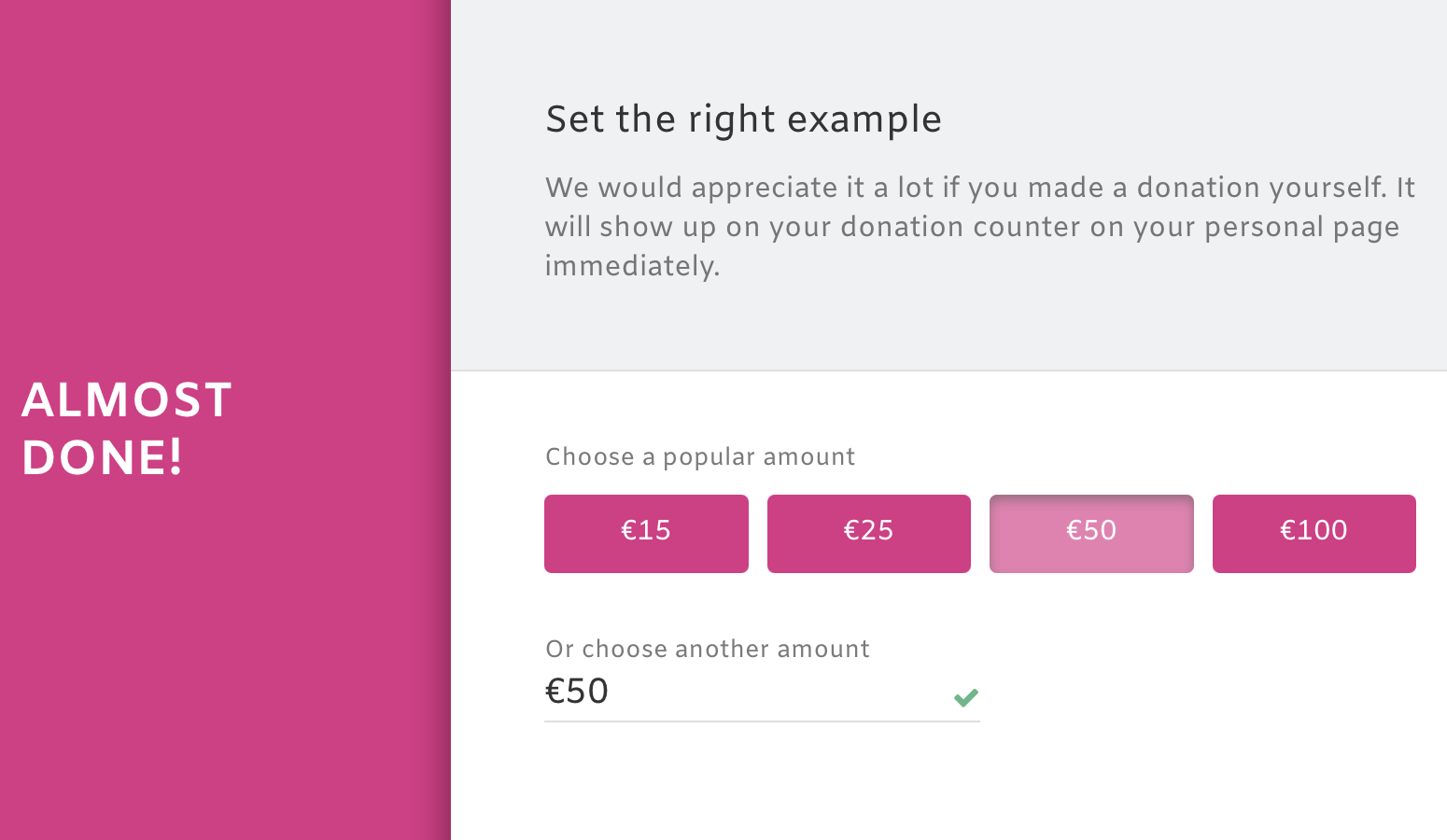 |
When you click Submit, Kentaa sends a number of webhooks to Salesforce. These create:
- 1 x account representing the fundraising team.
- 2 x contacts called Jake and Lilly representing the team members.
- 1 x task representing the donation - pointing at both the team account and team leader contact.
You can add more fields as needed. Have fun!