Salesforce/Box V1 Webhooks
Box is a cloud-based file management service that offers collaboration for businesses and individuals.
(Looking for Box V2 Webhooks? Here is the V2 recipe »)
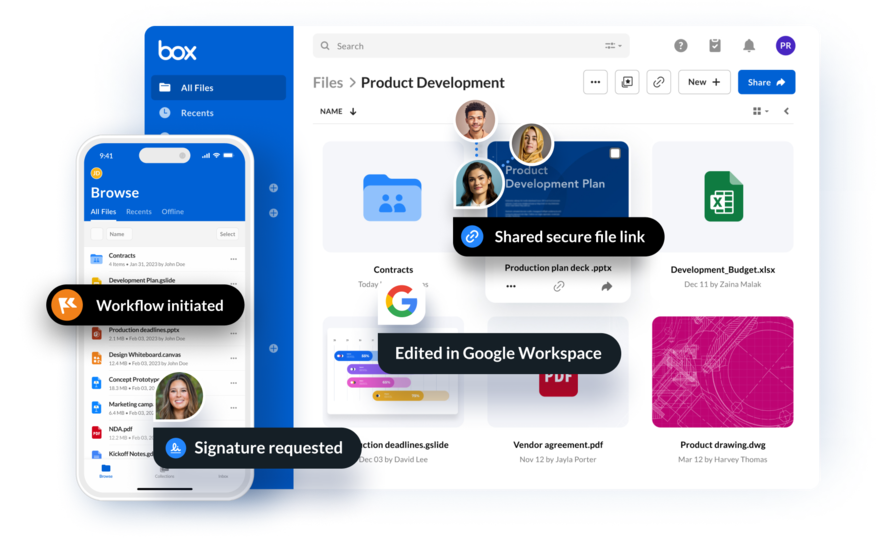
This recipe shows how to send real-time Box folder notifications into Salesforce using Streamscript webhooks.
| RECIPE |
|---|
| Step 1 - Create a webhook receiver in Salesforce Step 2 - Configure Box to send file events with V1 Webhooks Step 3 - Test the integration with a file upload |
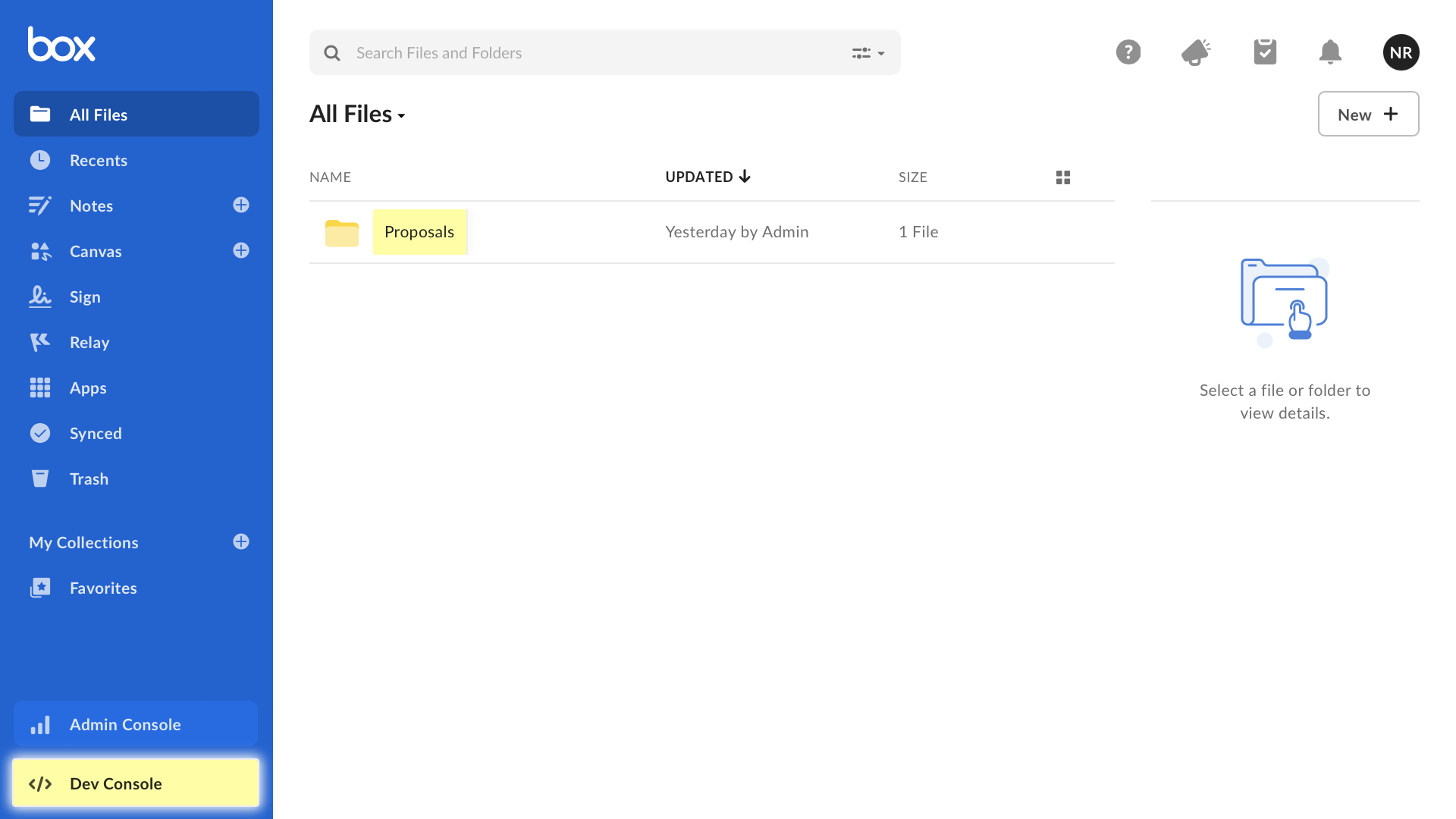
Start this recipe by creating a 'Proposals' folder in the Box app, then open the Dev Console to access apps and webhooks. Webhooks are included in all Box Enterprise plans.
Step 1 - Create a webhook receiver in Salesforce
Log into Salesforce and prepare a Flow to handle the webhooks.
- Follow the site setup video if you don't already have a Site configured.
- Go to the Streamscript app > Integrations tab > click New Webhook Flow
- Add a Streamscript action, with Name: Streamscript
- Paste in below script then click Done
# Streamscript to read the Box callback parameters
$file = $Webhook.requestParams.item_name
$type = $Webhook.requestParams.event_type
$name = $Webhook.requestParams.from_user_name

# Secure the endpoint with a token of your choosing
if ($Webhook.requestParams.token != 'ABC123') {throw 'Bad Token'}

# Prepare Task
$Task = New-Task
$Task.Subject = `Box activity: $type`
$Task.Description = `User $name interacted with: $file`
return $Task
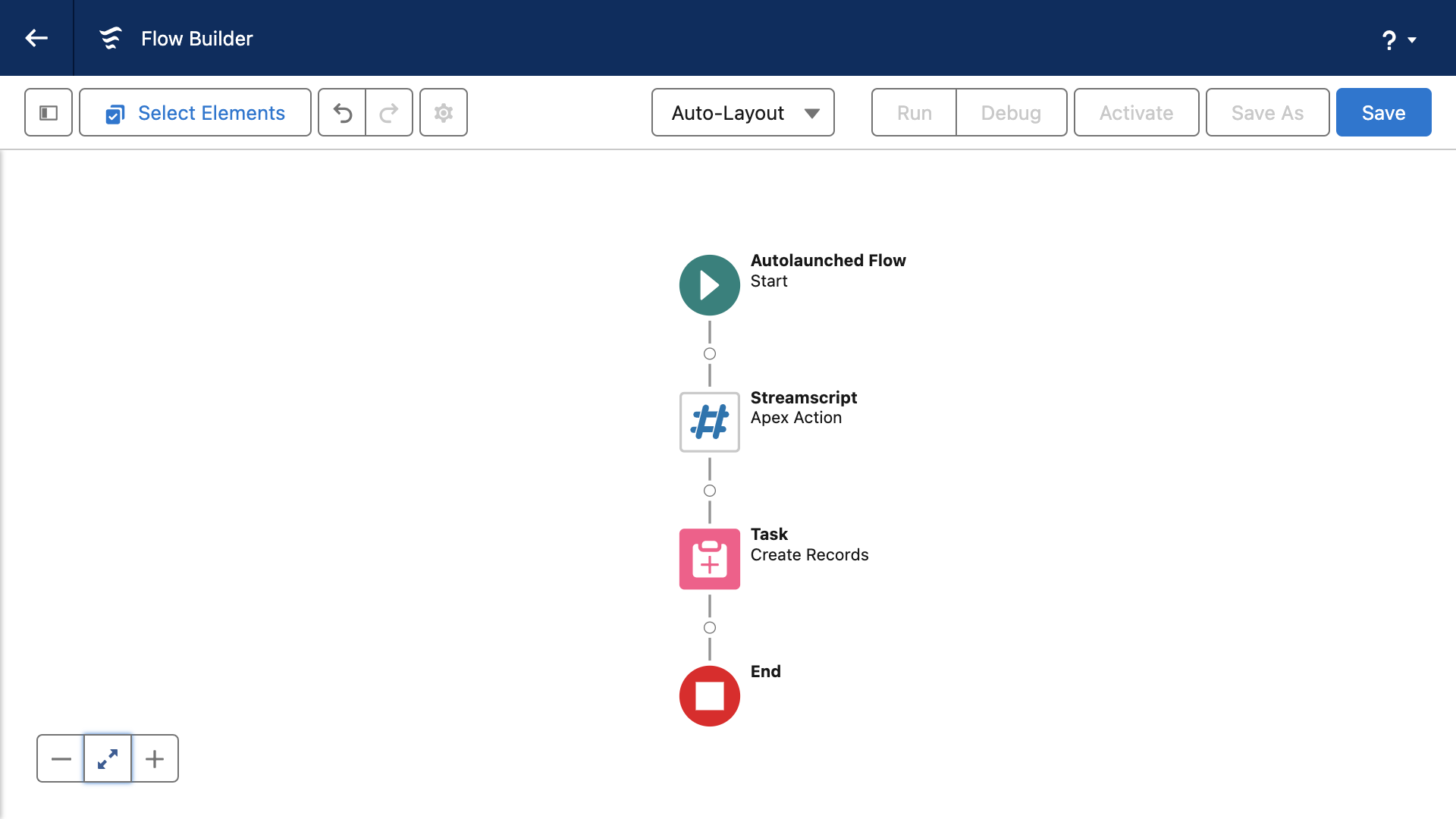
Add a flow element to save the Task.
- Add a Create Records element, with Name: Save Task
- Set Create a Record from These Values to the
Streamscript > recordoutput - Click Done. Here is how the flow looks.
Save the Flow:
- Use this specific API Name: Webhook_Streams_BoxV1
- Show Advanced > How to Run the Flow: choose System Context With Sharing
(This flow property ensures the Site Guest User can insert the task record)
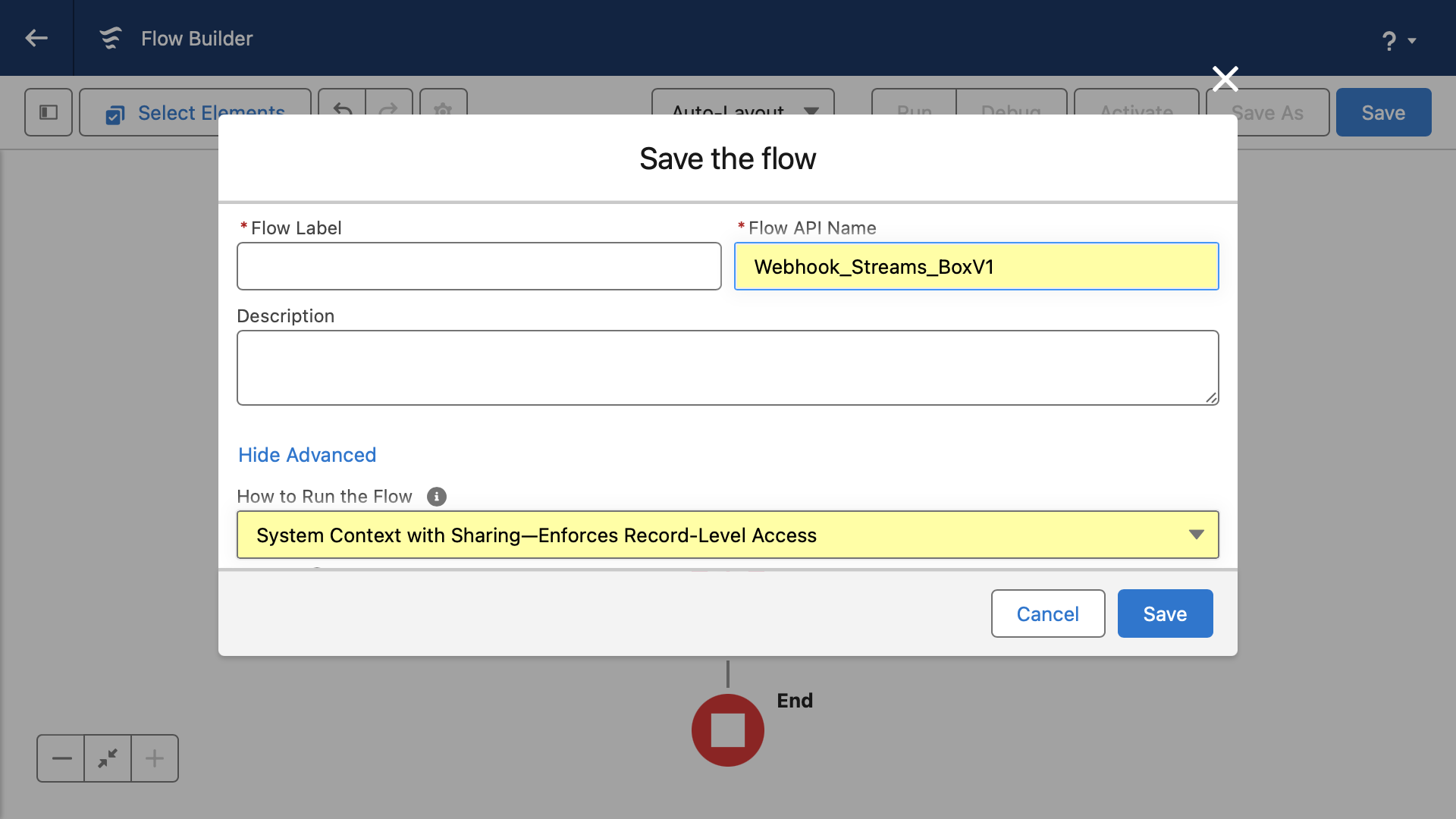
Note that the Flow API Name follows this three-part naming convention: Webhook_SiteName_PathSuffix
- Click Activate
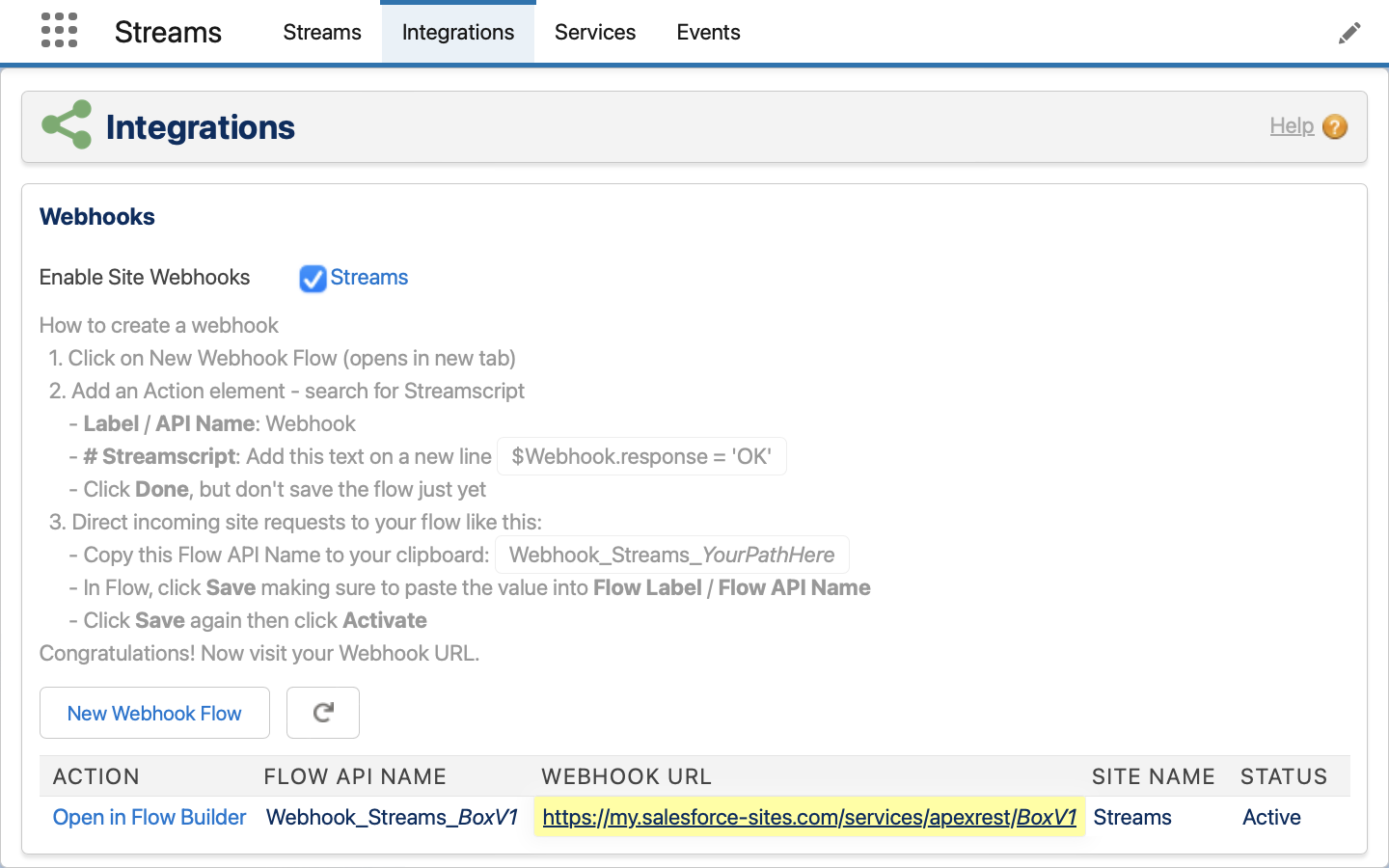
- Go to the Streamscript app > Integrations tab
- Find the Webhook URL and then Copy it to the clipboard. It's ready for Box.
Step 2 - Configure Box to send file events with V1 Webhooks
Log into Box > Dev Console > My Apps:
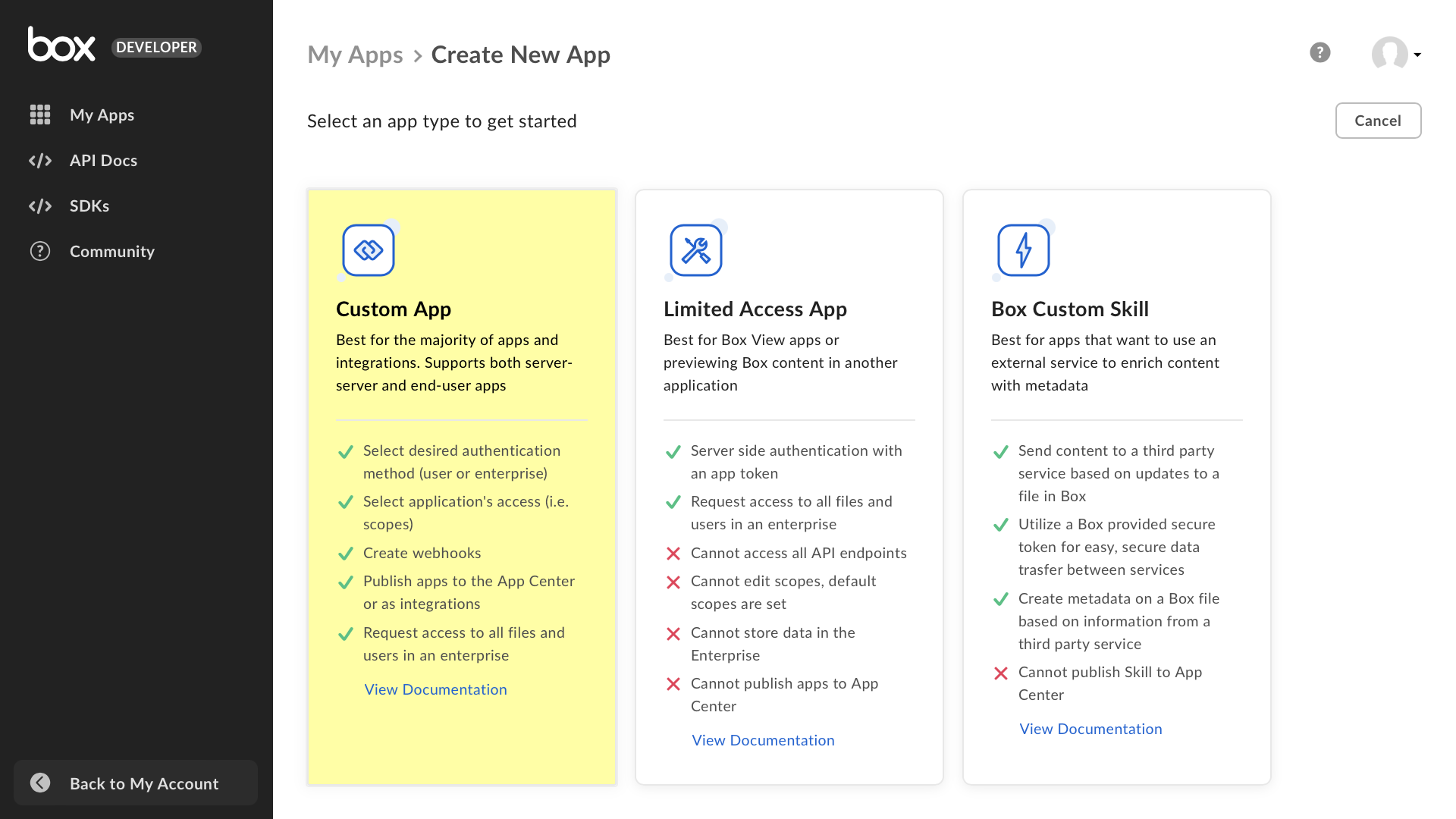
- Click Create New App
- App Type: Custom App
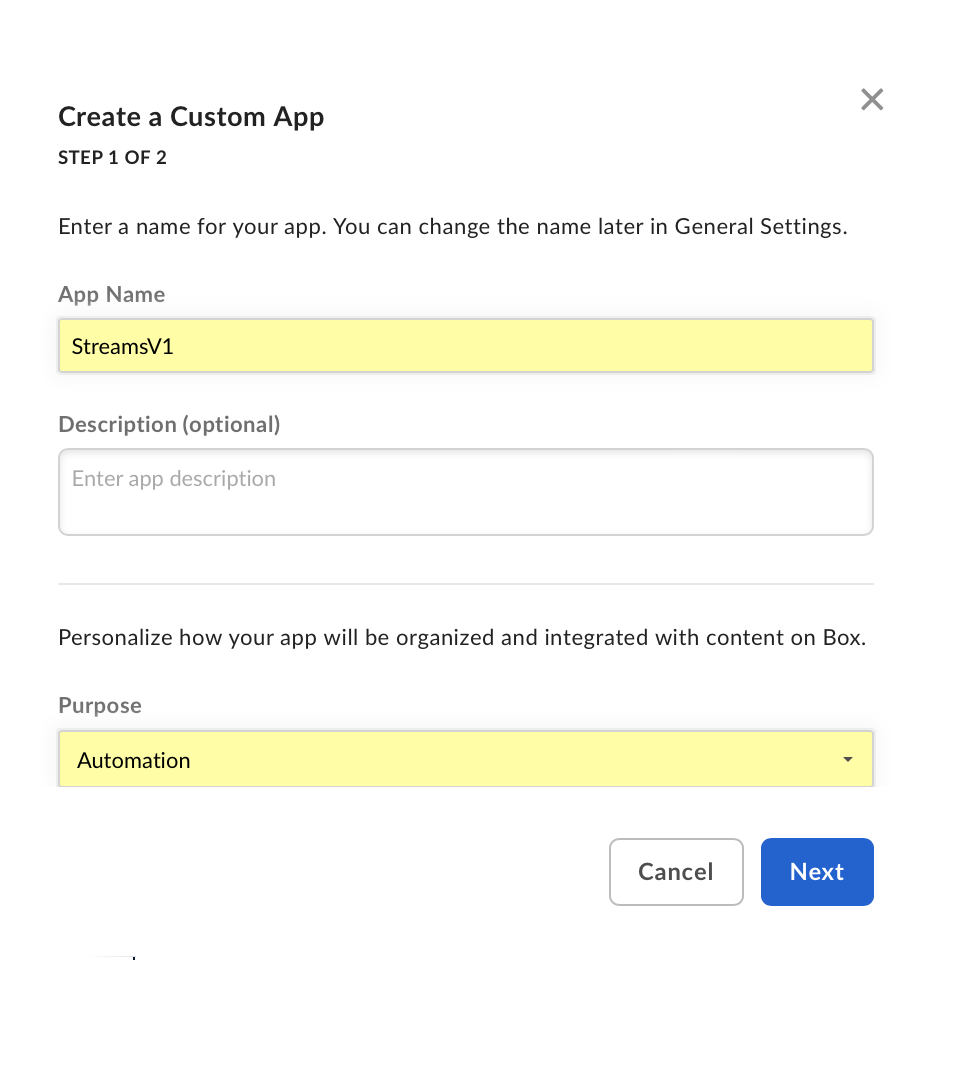
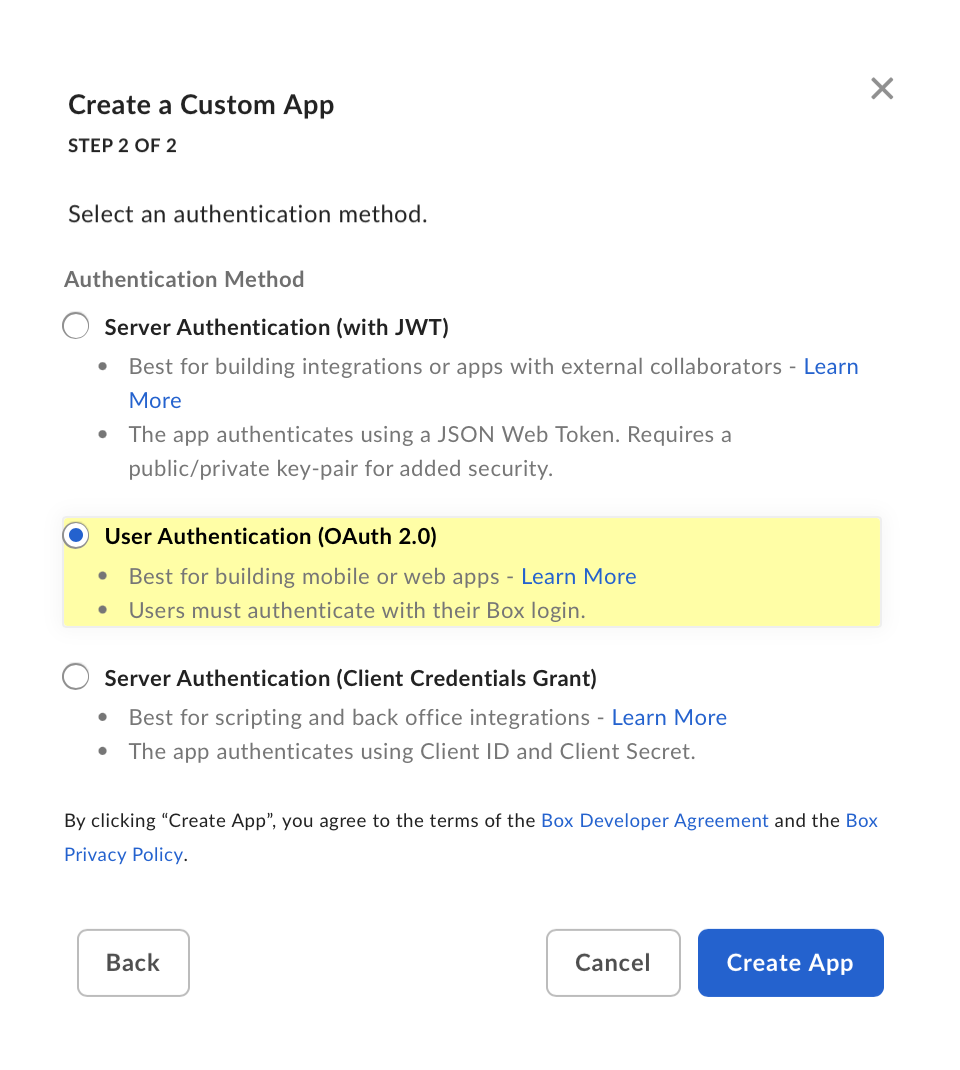
Carefully choose the app settings:
- App Name: StreamscriptV1
- Purpose: Automation
- Authentication Method: User Authentication (OAuth 2.0) - this setting enables V1 Webhooks, having sessions that last beyond 60 minutes without expiring.
 |
 |
Now configure the Box webhook.
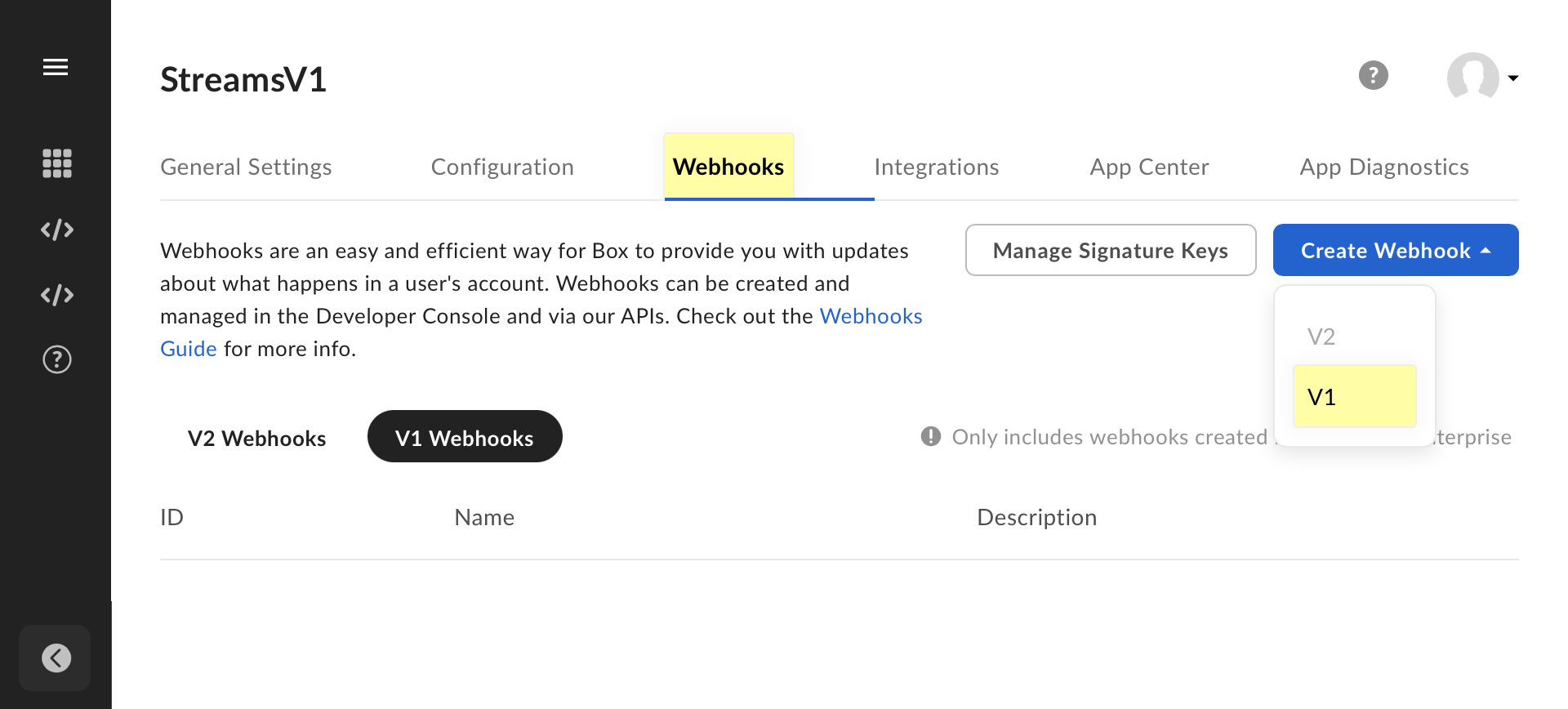
- In your app, go to the Webhooks tab
- From the Create Webhook dropdown, select V1
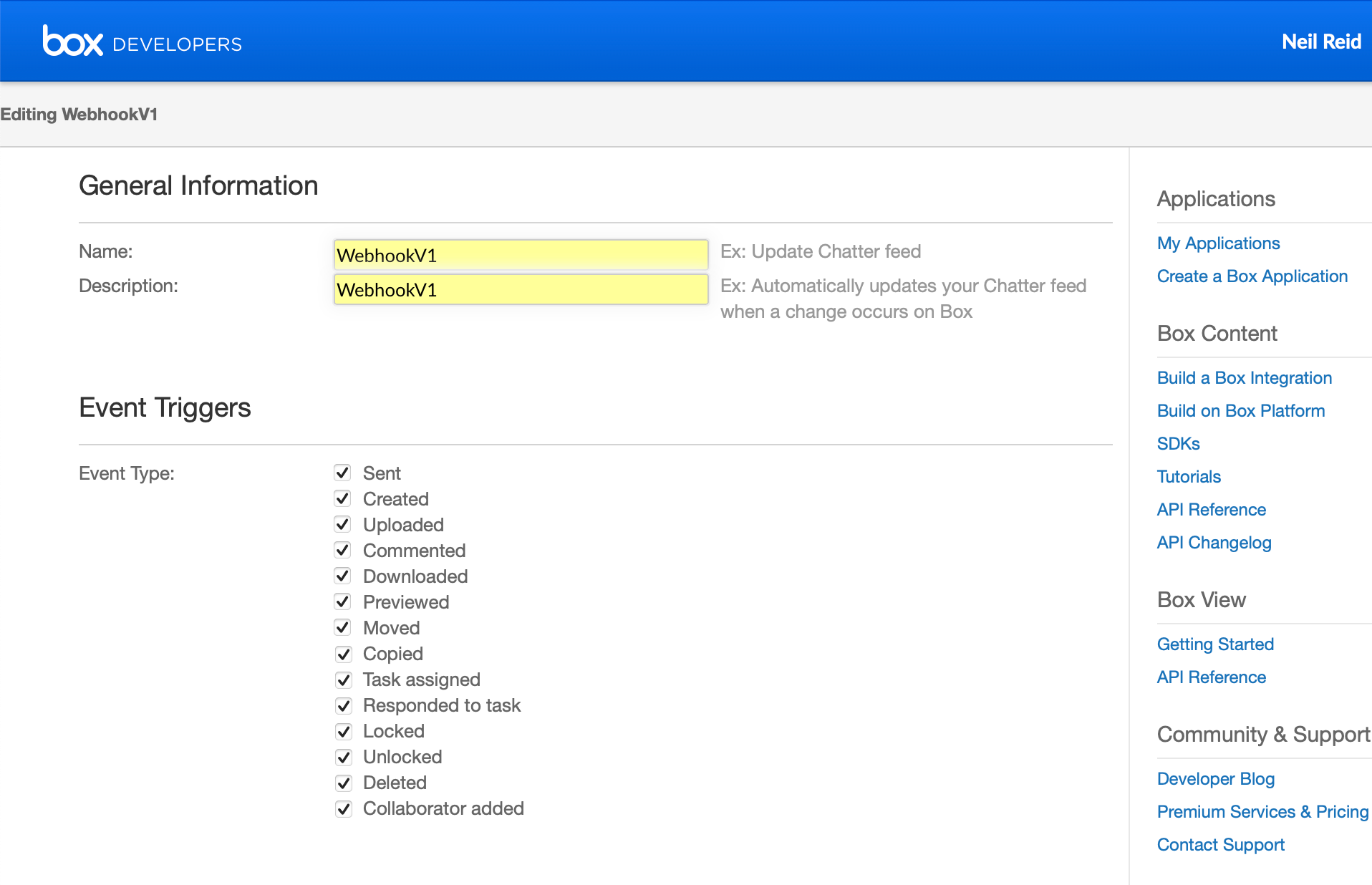
General Information
- Name: WebhookV1
- Description: WebhookV1
- Event Type: Select all the event type checkboxes
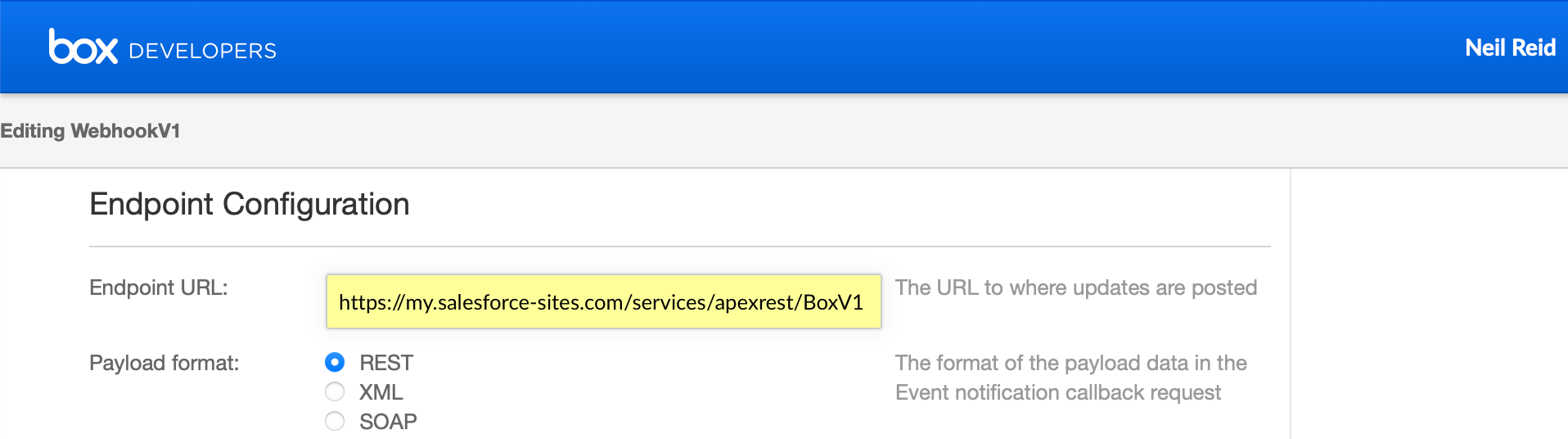
Endpoint Configuration
- Endpoint URL: Paste the Webhook URL from the clipboard in Step 1
- Payload Format: REST
Callback Parameters are keys and values contained in the webhook payload. Include all of them so that Salesforce receives the full event detail. For each row, click Add callback parameter:
- Method: GET
- Parameter name: item_name
- Parameter value: #item_name# (note the hash
#symbols, and avoid accidental spaces)
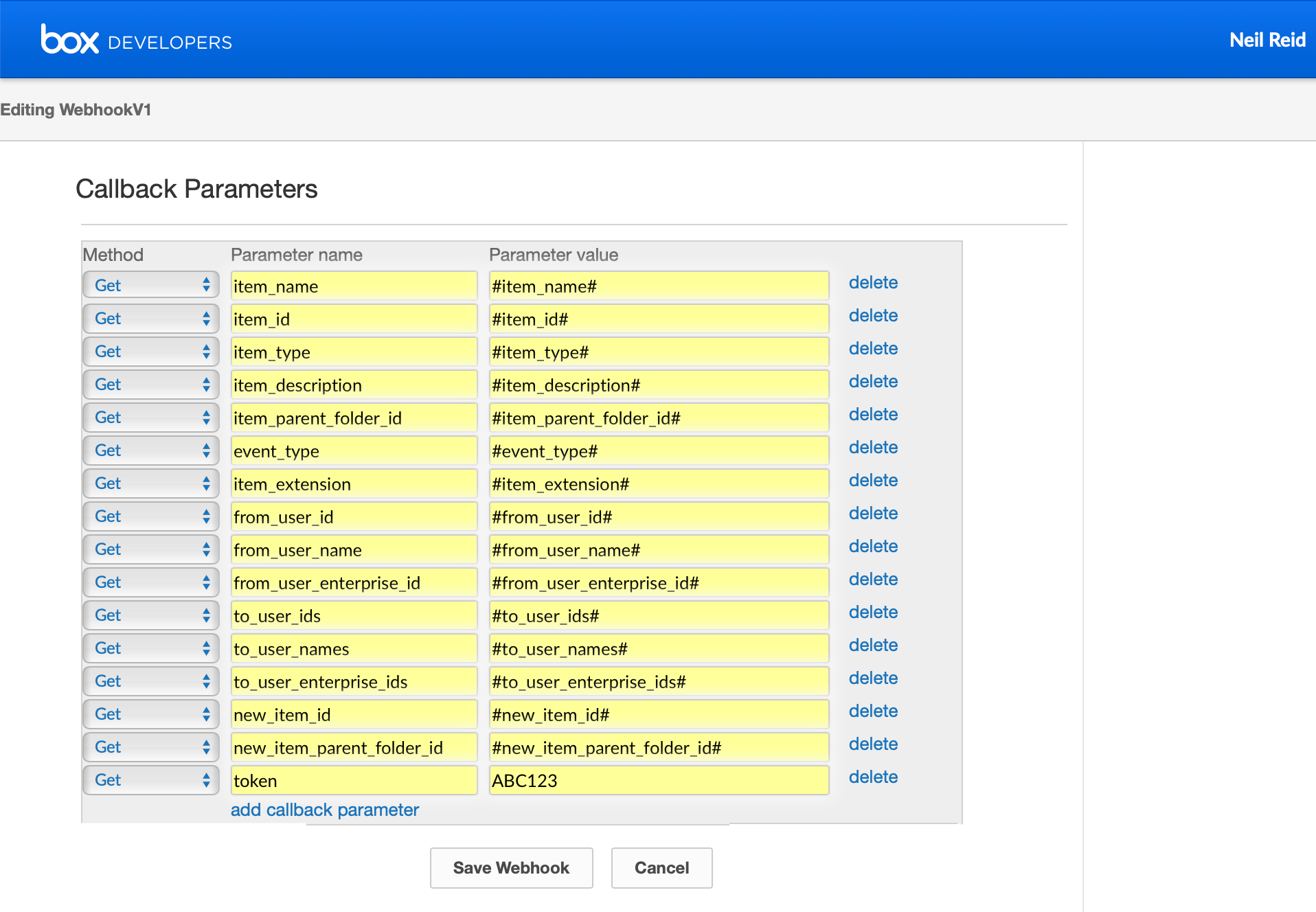
Add one final parameter - a hard coded value containing a secure token of your own choosing. This is used by the webhook endpoint to verify each request came from you.
- Click the Save Webhook button.
- It will say The event notification has been successfully saved.
- Click Cancel to return to the App.
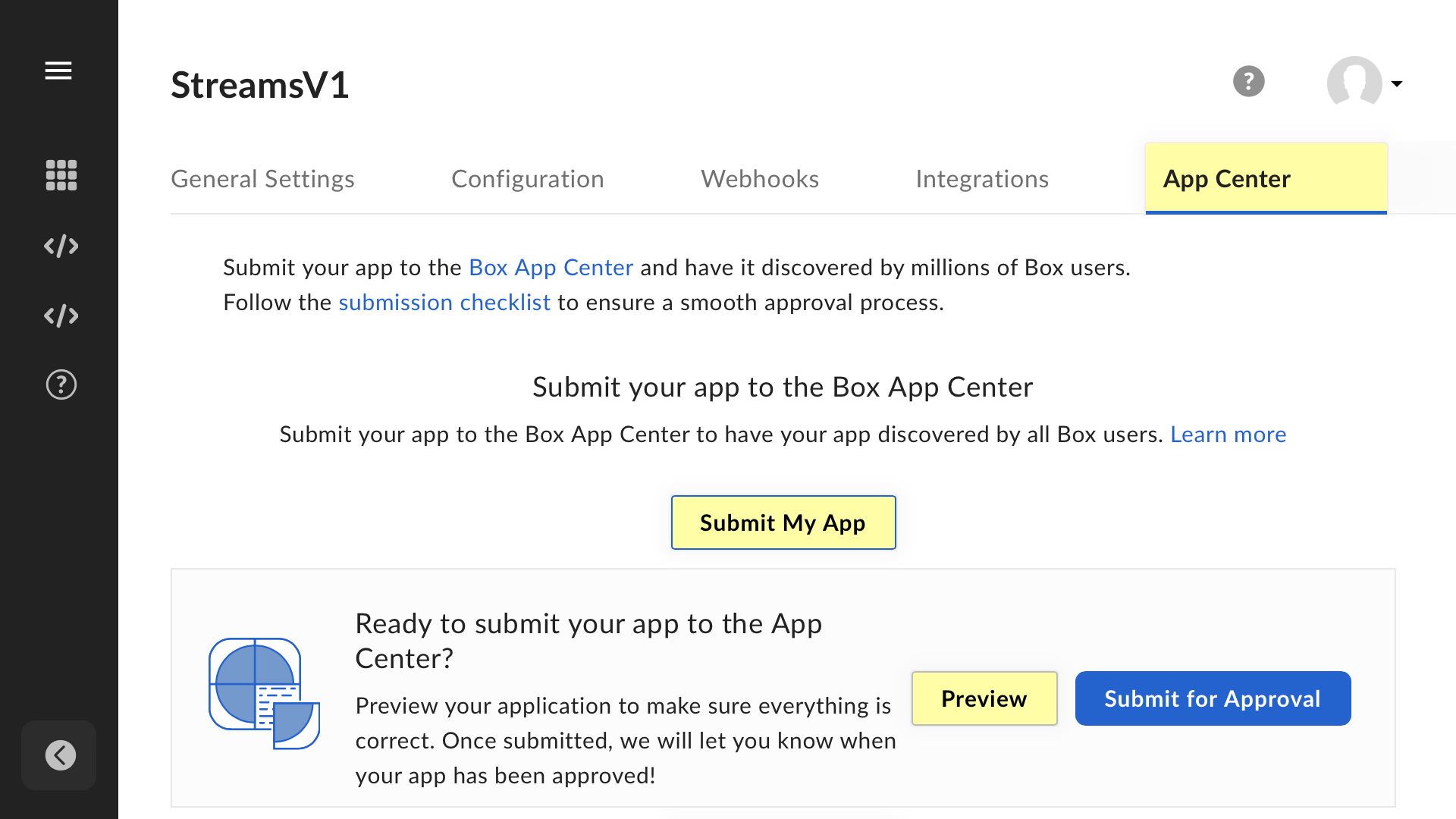
Finally, install your app in your Box account using the preview process. This option keeps the app private and does not require approval from Box.
- Go to the App Center tab
- To reveal the Preview button, click Submit My App
- At the review screen, scroll down and click Preview - this does not submit the app.
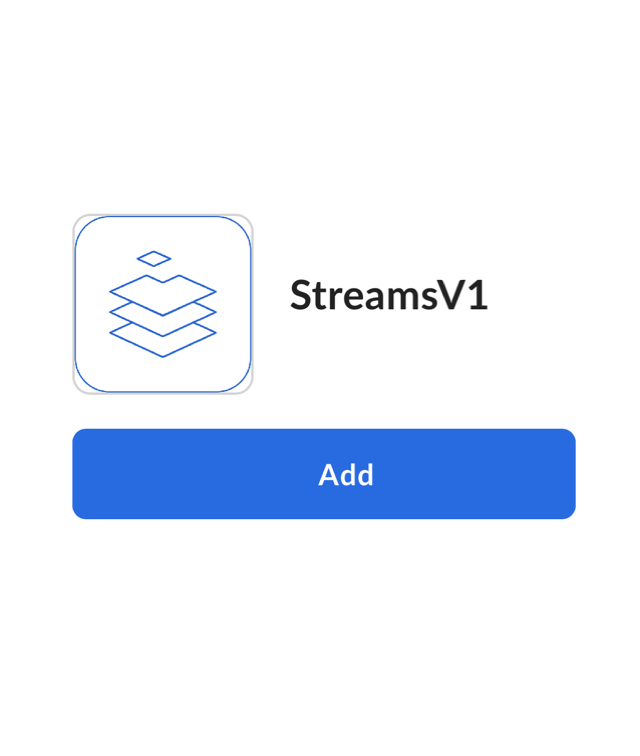
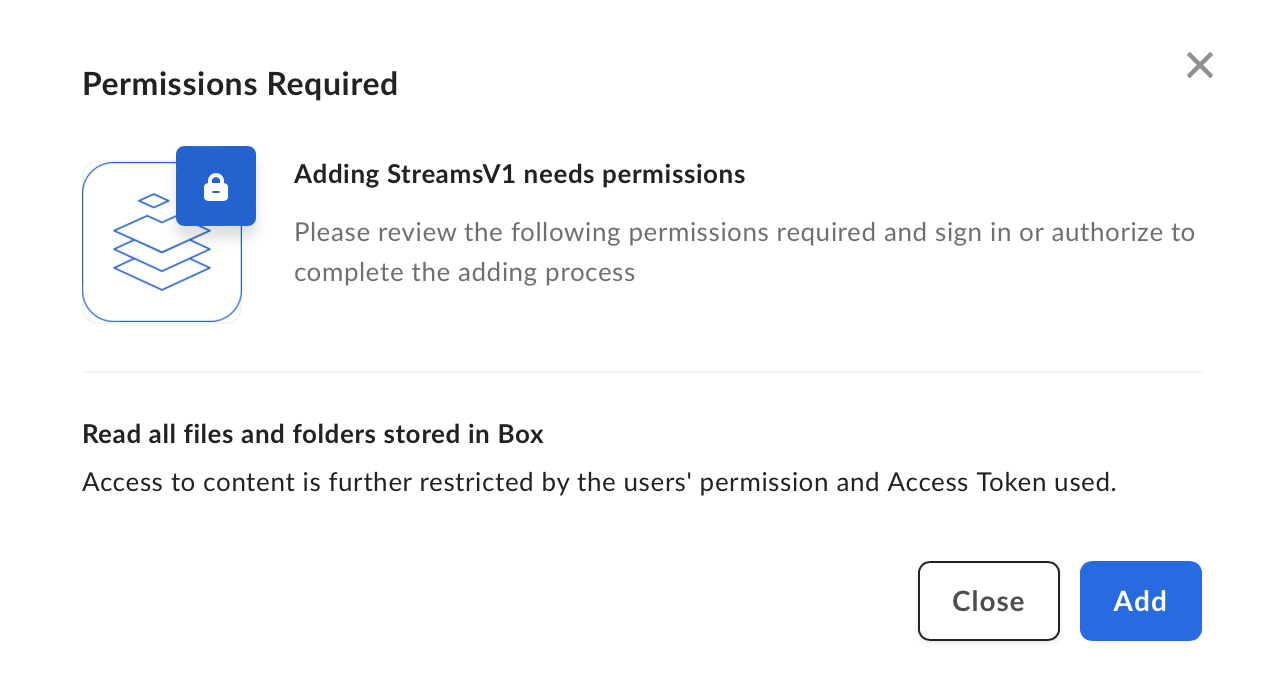
It navigates you directly to the app awaiting install in your Box environment. Click Add.
 |
 |
Step 3 - Test the integration with a file upload
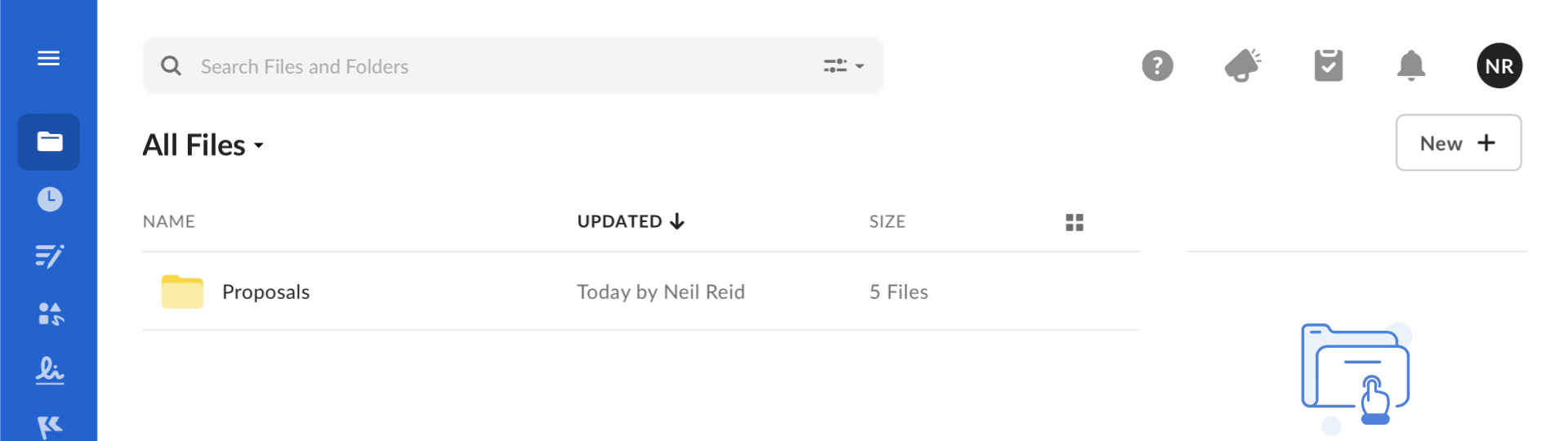
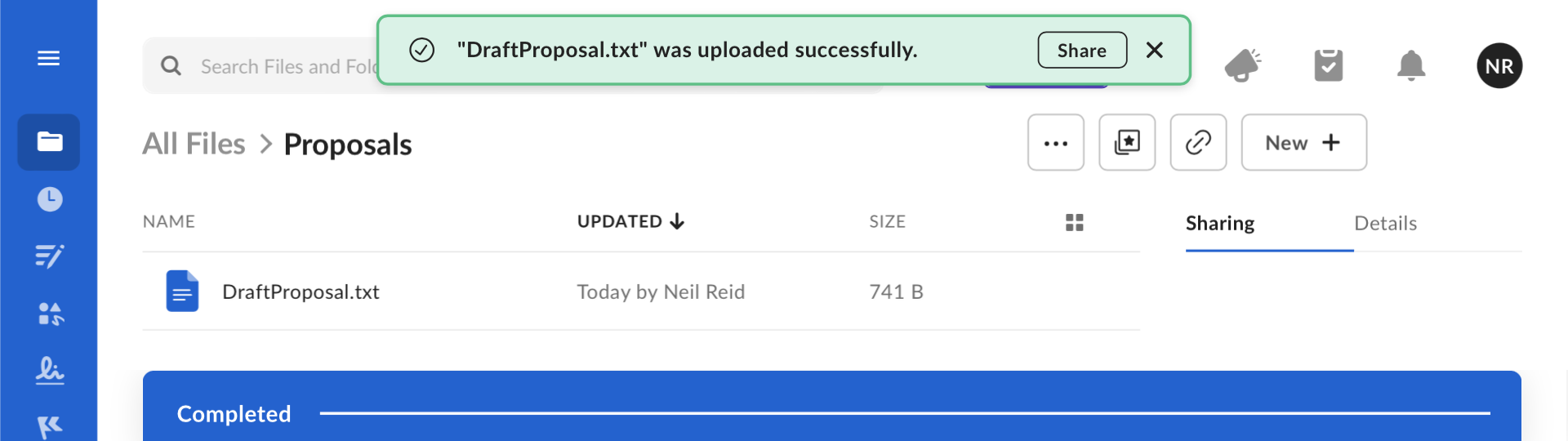
Log into your Box workspace. From the blue navigation menu, click Files then the Proposals folder. Drag and drop a test file into the folder to upload it.
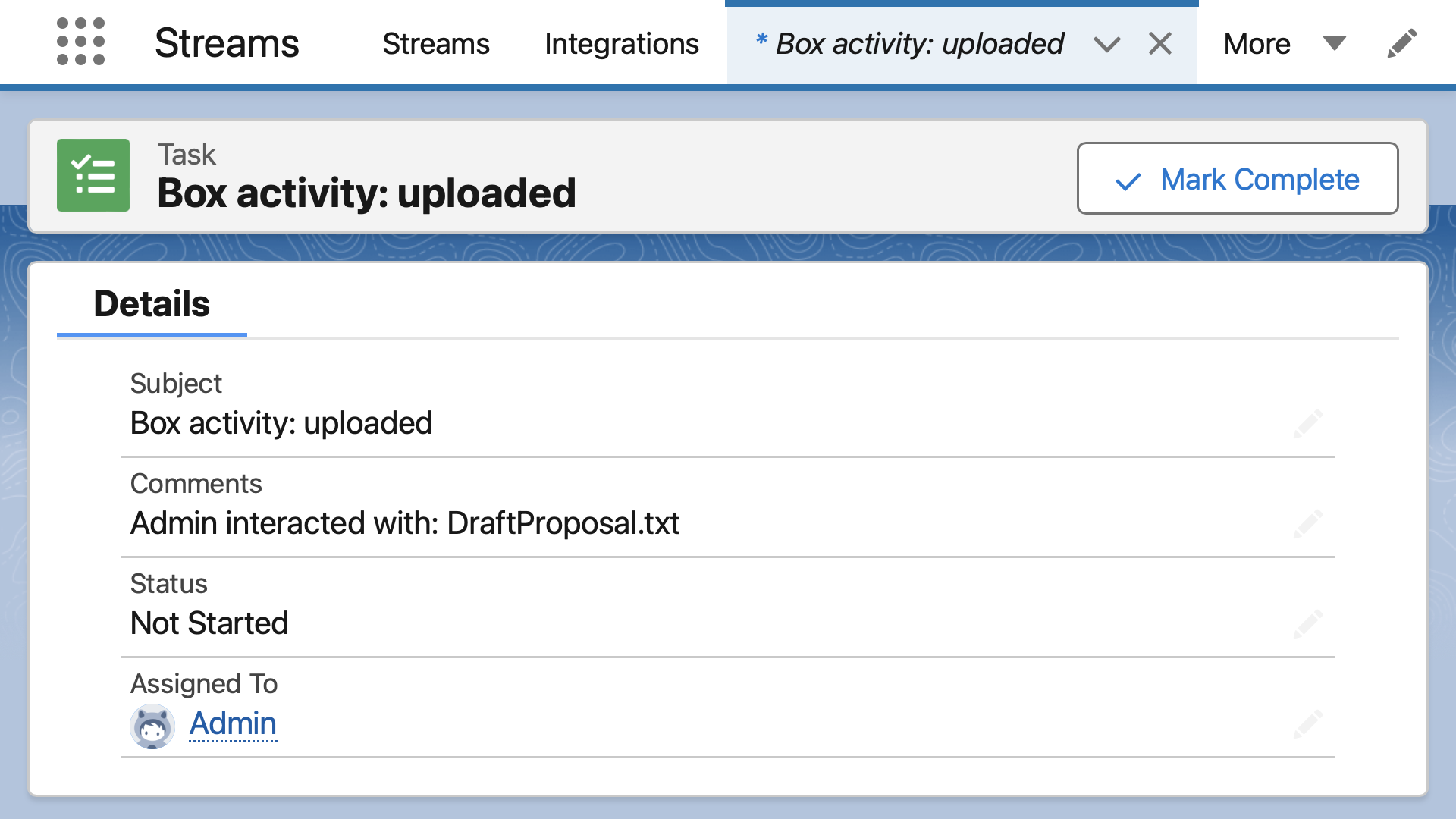
Log into Salesforce. Go to the Tasks tab and open the list view. Here is the upload notification!
This simple Box/Salesforce integration needs no OAuth implementation nor token refresh logic. All file and folder events are sent from Box into Salesforce via the webhook.
Appendix - Example Data
HTTP Headers for Box V1 Webhooks:
- User-Agent:
Box-Skills-Client/0.1 - Box-Delivery-Timestamp:
2023-12-05T10:56:53-08:00 - Surrogate-Capability:
prod-c1-a-web-proxy-3x0m="Surrogate/1.0 ESI/1.0"
Callback Parameters for Box V1 Webhooks:
- event_type:
uploaded - item_id:
1380432606482 - item_type:
file - item_extension:
png - item_description:
Proposal - item_name:
Screenshot.png - item_parent_folder_id:
0 - from_user_id:
30353080461 - from_user_name:
Box Admin - from_user_enterprise_id:
1115752461 - to_user_ids:
["30353080461"] - to_user_names:
["John Smith"] - to_user_enterprise_ids:
["1115752461"] - new_item_id:
1380452238155(present in 'copied' events) - new_item_parent_folder_id:
237583118146(present in 'copied' events)
$Webhook request and response properties:
$Webhook.request # null
$Webhook.requestMethod # GET
$Webhook.requestIp # 74.112.186.52
$Webhook.requestUri # /Streamscript/BoxV1
$Webhook.requestPath # /services/apexrest/Streamscript/*
$Webhook.requestParams # {item_name: "Screenshot.png"...}
$Webhook.requestHeaders {X-Salesforce-SIP: "74.112.186.52"...}
$Webhook.responseStatus # 200
$Webhook.responseHeaders # {...}
$Webhook.response # blank